You cannot directly choose your Google Business Profile verification method. Google’s algorithm decides for you, but you can influence which option it offers. The default verification process needs a video, and that’s why people look for a way to get verified on Google Business without a video.
The path to skipping video verification starts before you ever claim your listing. Build trust signals first. A website, consistent citations, matching NAP data, and a Search Console connection all shape what Google offers.
Video verification is now the default for most new GBP listings in 2026. This hits service area businesses and new businesses with a thin online presence the hardest.
Why Google Defaults to Video Verification
Google assigns verification methods through an automated system. You never get to pick the method yourself; the algorithm decides based on what it can already confirm about your business.
Three factors push a listing toward video as the only option. New businesses with no web presence give Google nothing to cross-reference. Service area businesses working from home have no public storefront for Street View or Maps data to confirm. High-risk categories like locksmiths, cannabis, and some healthcare verticals default to video because of past spam problems.
Google Business Profile optimization starts with understanding this trigger system before you touch the claim button. Google updated its support documentation to state that Google verification methods are automatically determined and cannot be changed after assignment. That said, you still control what the algorithm sees before you claim the listing, and that groundwork is what shifts the outcome.
7 Steps to Get Verified Without Video
Local SEO practitioners, including Whitespark’s Darren Shaw, have documented a consistent pattern. Businesses that build a strong online footprint before claiming their GBP get offered phone, email, or instant verification far more often.
This preparation takes four to eight weeks. There are no guarantees attached to any of it; Google can still assign a video regardless of how much groundwork you lay down.
What follows are the seven steps that consistently improve your odds, based on repeated hands-on testing across different business categories. They will help you verify GMB without video.
Step 1: Build a Professional Website With NAP Information
Every business needs a real website before claiming its profile; even a single-page site works for this purpose. Multi-location businesses should build a dedicated page for each address.
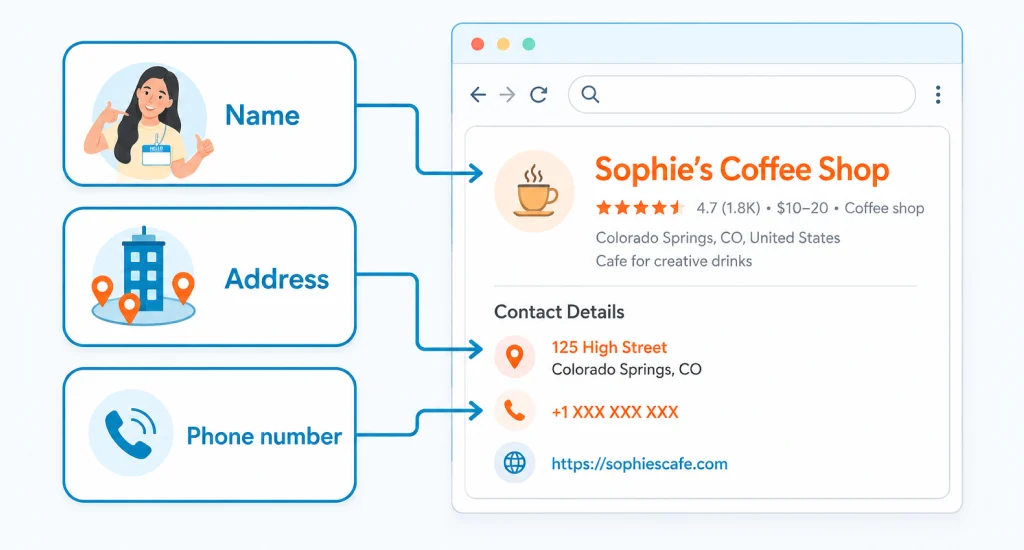
Put your Name, Address, and Phone Number on the homepage, the contact page, and the footer of every page. Add LocalBusiness schema markup so Google’s crawlers can parse the structured data directly.
Use a domain-based email address like info@yourbusiness.com instead of a free Gmail account. You can absolutely use Google Business Profile without a website in a pinch, but skipping this step removes your strongest trust signal and makes video verification far more likely.
Step 2: Connect to Google Search Console and GA4
Verify your domain with Google Search Console verification using the same account you plan to use to claim the GBP later. This single detail matters more than most people realize.
Install Google Analytics 4 on the same site right after. This creates a verified chain linking your Google account, your domain, and Google’s own systems together.
The algorithm reads this connection as proof of legitimate ownership. According to Google’s own Business Profile Help documentation, instant verification can happen when you verify your website with Google Search Console, confirming this trust signal is often what unlocks email or instant verification instead of video.
Step 3: Build Citations on Key Directories
Create matching business listings across the directories Google actually cross-references. Focus on Facebook, Yelp, the Better Business Bureau, Yellow Pages, and any directory specific to your industry.
Set up active social profiles on Facebook and LinkedIn as well. Submit your business to data aggregators like Data Axle and Neustar Localeze, so your NAP consistency spreads to secondary directories automatically.
The one rule that matters most here is consistency:
- Same business name spelling everywhere, no abbreviations in one listing and full names in another
- Same address format across every directory and platform
- Same phone number with matching formatting on every listing
Any mismatch tells Google’s algorithm your business data cannot be trusted, and that pushes you straight toward video verification.
Step 4: Wait for Google to Index Your Citations
Give Google two to four weeks to crawl and index your new citations before moving forward. Rushing this step undermines everything you just built.
Check progress using a tool like Whitespark’s Citation Finder, or simply search your business name plus address in Google. Claiming your GBP before the citations show up defeats the entire purpose of this process.
Step 5: Add the Business to Google Maps as a User
Open Google Maps from a separate account, one that will not manage the GBP later, and select “Add a missing place.” Enter the business name, category, NAP, and website exactly as they appear elsewhere.
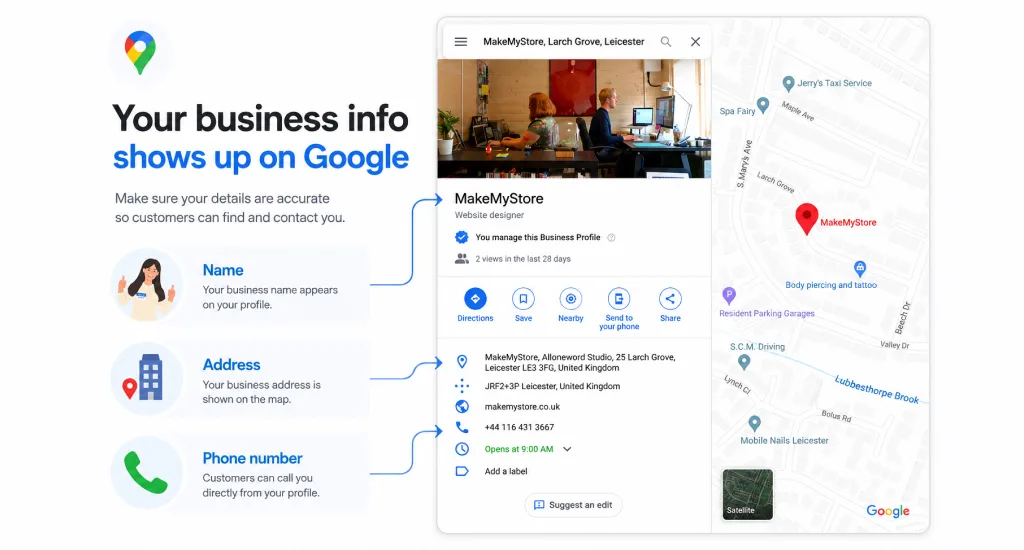
This creates an organic record inside Google’s knowledge graph, as though a real person discovered the business independently. If you know someone with Local Guide status on Google Maps, ask them to submit it instead, since their submissions carry extra weight.
Well-written Google Business Profile editorial summaries paired with this organic Maps entry reinforce that a real, active business exists at this location.
Step 6: Get a Few Early Reviews
Ask a handful of genuine customers to leave honest reviews on the new Maps listing. Even three to five real reviews signal actual human interaction with the business.
- Never buy reviews from third-party services
- Never offer incentives in exchange for a review
- Never write reviews from your own accounts
According to Google’s Maps User Generated Content Policy, incentivized or biased reviews, meaning any content posted due to a payment, discount, or free good or service offered by the business, are not allowed and will be removed from Maps.
Google’s spam detection catches manipulated reviews quickly, and the penalty can mean permanent suspension of your listing.
Step 7: Claim the Profile With Your Search Console Email
Sign in using the exact Google account already linked to your GA4 property and Search Console verification. Go to Google Business Profile and claim your listing under that same account.
Fill in every requested field, including hours, services offered, and photos of the business. Google can now cross-reference domain ownership, website analytics, citations, and your Maps presence all at once, and that combination is what significantly raises your odds of phone, email, or instant verification instead of video.
What to Do If Google Still Requires Video
No method on this list guarantees you will skip video verification on Google Business. If Google still requires it, the goal shifts to passing on the first attempt.
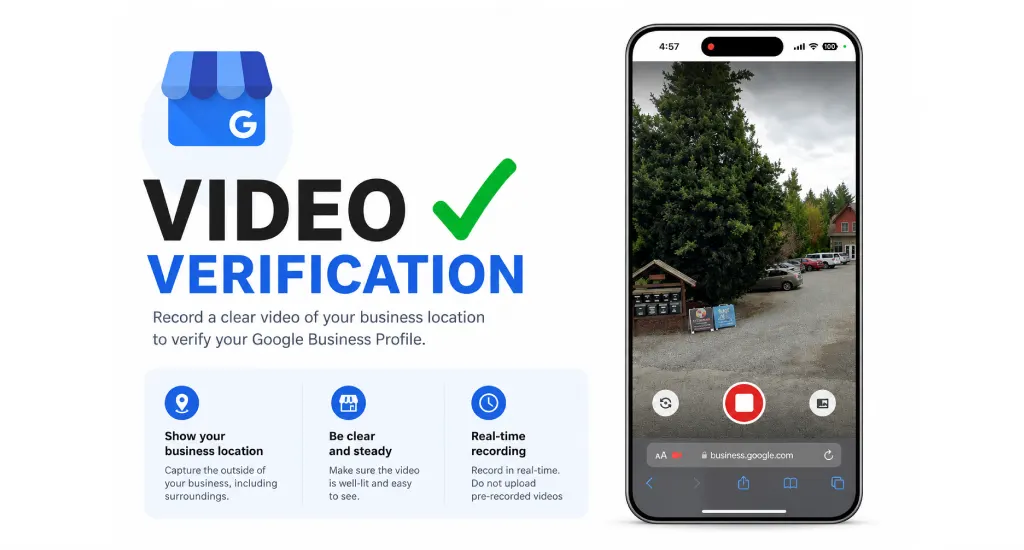
Google requires one continuous, unedited recording shot and uploaded in a single take; you cannot edit or splice separate clips together. Structure the video in this order.
- Start outside and capture the street sign along with the building exterior and entrance, showing your address
- Walk inside and show the workspace, business equipment, and any branded signage on display
- Show proof of operations, such as a business license, a utility bill with the address, or branded materials
- Keep GPS enabled on your device throughout the entire recording
- Avoid capturing faces or any sensitive personal documents on camera
Review typically takes up to five business days after you submit. If you get a “Review issues” notification, refilm the video and address the specific problem flagged in that message.
If multiple attempts still fail, contact Google Business Support through the verification status tool rather than the standard help form. That tool routes requests to staff who can approve manual or alternative verification.
How Long Does the Entire Process Take?
Total prep time before you claim your GBP runs from four to eight weeks. Citation building takes one to two weeks, and the indexation wait adds another two to four weeks on top of that.
Once you claim the listing, phone or email verification usually happens almost instantly. Video review adds up to five business days, and manual support requests can stretch several additional weeks depending on the backlog.
While you wait, check that your Google review is not showing publicly yet, since new reviews can lag behind indexation timelines too. Patience during the citation indexing wait is the single most important factor in this entire process.
Conclusion
Skipping video verification on your Google Business Profile is never guaranteed, but it is far from random either. The seven steps above build the exact trust signals Google’s algorithm checks before assigning a method.
Start with your website and Search Console connection, then layer in citations, Maps presence, and early reviews. Do the groundwork properly, and phone or email verification becomes a realistic outcome instead of a hopeful guess.