YouTube allows embedding through a setting inside YouTube Studio video details. Creators must open a video, go to “Show more,” and tick the option that allows embedding on external websites.
Many videos fail to play on blogs when this option is off. In that case, websites show a message that playback is disabled by the video owner. Turning this setting on removes that limit and allows videos to appear on any supported site.
This guide will explain how to allow embedding on YouTube videos step by step, along with how embed code works and how websites display videos without errors.
What Does “Allow Embedding” Mean on YouTube?
Allow embedding means a YouTube setting that lets videos play on other websites freely. Creators can turn this option on or off inside the YouTube Studio video settings page.
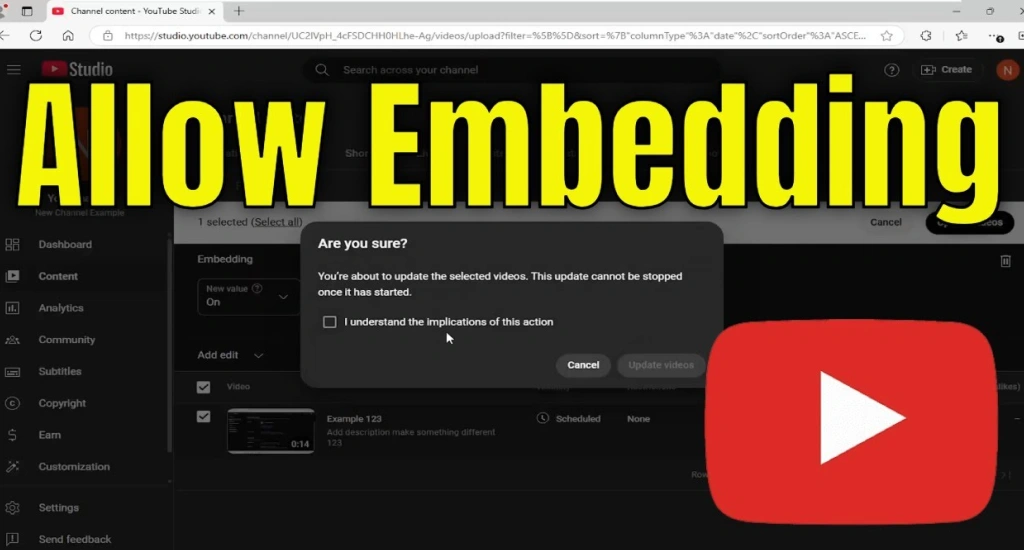
We use an iframe embed code to show YouTube videos directly inside another website page. When disabled, viewers see the message: Playback on other websites has been disabled by the owner.
Embedding helps blogs and websites display videos without sending visitors away from the page easily for readers today. Watching on YouTube opens the full platform; embedded playback stays inside the website window for visitors smoothly.
Embedded videos load inside web pages and keep users focused on content without redirects. This feature helps creators share content across websites like blogs, learning sites, and forums. It also improves reach since one video can appear on many different platforms.
How to Allow Embedding on a YouTube Video (Step-by-Step)
YouTube allows embedding through a simple setting inside the YouTube Studio video options page. Creators can control where videos appear on websites by turning on this feature. This guide shows a step-by-step process, so videos play smoothly across external platforms without issues.
Steps to Allow Embedding on YouTube Video
YouTube Studio holds the main control for embedding settings, letting creators adjust video access for external websites. These steps show how to switch the option on quickly inside account settings.
- Open Studio: Open the YouTube Studio dashboard from your account homepage on a desktop browser screen.
- Select Video: Click the Content tab, then choose the video that needs an embedding permission update.
- Edit Settings: Press the Edit button and open the Show more section for advanced video options.
- Find Embed Option: Locate the Allow embedding checkbox inside the settings panel under the distribution controls area.
- Enable Access: Tick the checkbox to allow embedding so websites can display video properly everywhere.
- Save Changes: Click the Save button to confirm updates and activate the new embedding permission instantly.
- Check Result: Refresh the video page and confirm embedding works correctly across websites and blogs.
Embedding helps videos appear on blogs and supports an AI marketing strategy that improves reach across different platforms without forcing viewers to leave webpages unnecessarily.
Where to Find Embedding Settings in Advanced Settings
The video details page inside YouTube Studio holds all embedding controls for each uploaded video. Advanced Settings section keeps extra options that do not appear on the main screen.
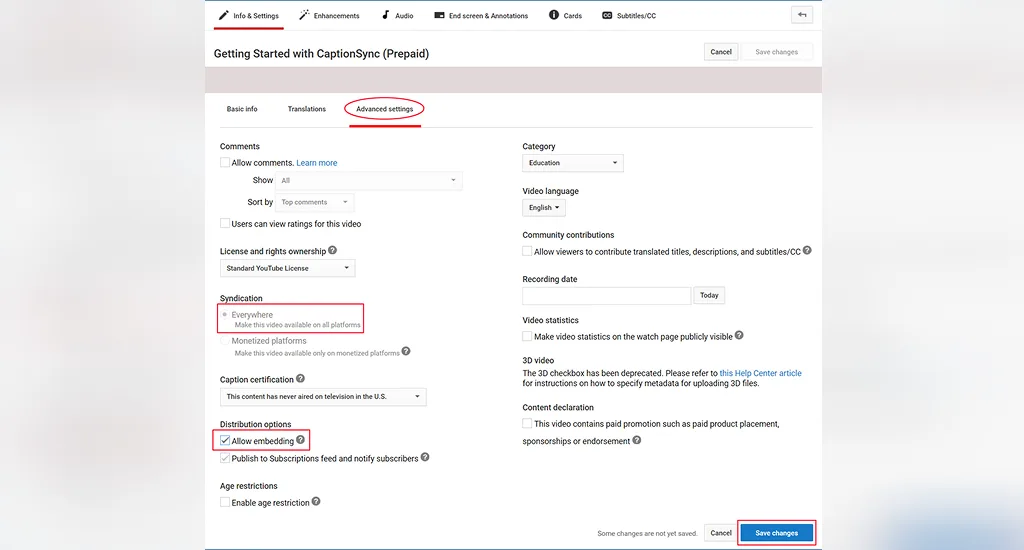
Creators must open the video edit page and scroll carefully until the license and distribution settings appear. These controls decide where video playback works outside the YouTube platform across websites and apps.
- Open the video edit page inside the YouTube Studio dashboard to access the required video settings
- Scroll down until the Advanced settings section appears under the video details area panel view
- Check the distribution controls that decide external playback permission for the website access rule system
How to Enable Embedding for YouTube Live Streams
Live streams need separate embedding control inside YouTube Live Dashboard settings. Stream configuration decides whether broadcasts appear on external websites during live playback sessions.
Creators must open the live control panel and adjust stream settings before going live or while scheduling events. This option ensures live content plays inside embedded players on blogs and websites smoothly.
- Go to the Live Dashboard inside YouTube Studio and open the Stream tab options panel area
- Select broadcast event, then click Edit Settings for the streaming control access panel system view
- Enable the embedding option and save the stream configuration before going live, final update step
Is Embedding Enabled by Default on YouTube?
Yes, most YouTube videos have embedding enabled by default. When you upload a video, YouTube automatically allows other websites to display it using an iframe embed code. You do not need to change anything for this to work unless a specific restriction applies to your content.
How YouTube Embedding Works
When someone embeds your video on a website, their page loads a YouTube iframe. That iframe sends a request to YouTube’s servers, which then stream the video directly from YouTube’s infrastructure.
The video never actually lives on the external site. YouTube handles all the delivery, buffering, and playback from its own servers.
Here is what happens in the background each time someone visits a page with an embedded YouTube video:
- The external website sends an HTTP request that includes a Referer header, which tells YouTube where the request is coming from
- YouTube checks that domain against its permissions and decides whether to allow playback
- If embedding is permitted, the player loads and streams the video to that visitor
- If embedding is restricted, the player shows an error and blocks playback on that page
When Embedding Gets Turned Off
Even though embedding is on by default, a few situations can disable it:
- A creator manually turns it off inside YouTube Studio while editing a video
- A music label or licensor applies content restrictions that block third-party playback
- Creators using YouTube’s Content Manager at a partner level may have platform-wide embedding rules applied to their uploads
Regular Creators vs. Advanced Accounts
For a standard YouTube channel, embedding is simply on or off per video, and the creator controls that setting. Advanced accounts connected to YouTube’s Content ID system or a content distribution partnership may have additional layers of control.
A rights holder can restrict embedding across entire catalogs, which a regular creator cannot do from a standard account.
How to Embed a YouTube Video on a Website
Embedding a YouTube video on a website takes less than a minute. You only need access to the video and a place to paste HTML code on your site.
Follow these steps on a desktop browser:
- Open the YouTube video you want to embed
- Click the Share button below the video player
- Select Embed from the sharing options
- Copy the iframe code that appears in the box
Once you have the code, open your website’s HTML editor and paste it where you want the video to appear. On WordPress, switch to the HTML or code block view before pasting. The video will load directly on your page without any file uploads or hosting on your end.
What Is a YouTube Embed Code (iframe)?
An iframe is a small block of HTML code that pulls content from another source into your webpage. YouTube generates one for every public video, and it looks something like this:
<iframe width=”560″ height=”315″ src=”https://www.youtube.com/embed/VIDEO_ID” allowfullscreen></iframe>
Each part of that code has a job. The src attribute points to the YouTube video using a unique video ID. The width and height values control the size of the player on your page. The allowfullscreen tag lets visitors expand the video to full screen. Your page does not store the video. It simply tells the browser to load and display it from YouTube’s servers inside that defined space.
Where You Can Embed YouTube Videos
YouTube embed codes work across a wide range of platforms, not just traditional websites:
- Blogs and websites: Paste the iframe into any HTML-supported page builder, including WordPress, Wix, Squarespace, or a custom-coded site
- Forums and communities: Platforms like Reddit, XenForo, and some Discord bots support embedded video players inside posts and threads
- Social media platforms: Some platforms display previews or allow iframe content inside custom tabs and page sections
- Apps and third-party platforms: Developers can drop iframe code into web-based app interfaces, landing page builders, email templates that support HTML, and content management systems
Can You Embed Public, Unlisted, or Private YouTube Videos?
Your video’s visibility setting directly controls whether embedding works on any external site. Choosing the wrong one is the most common reason an embedded video fails to load outside of YouTube.
Public videos
They are fully embeddable and work on any website or platform without restrictions. This is the recommended setting if you want your content to reach the widest audience possible. Anyone can copy the iframe code and paste it directly into their site.
Unlisted videos
These videos give you a middle ground between public and private. The video stays hidden from YouTube search and your channel page, but embedding still works when the viewer has the direct link. This makes unlisted a practical choice for:
- Course platforms and membership sites
- Client-facing pages and private project reviews
- Blog content meant for a specific audience
Private videos
This type cannot be embedded anywhere outside YouTube. Even with a valid iframe code, the player throws an error on every external site. Access is strictly limited to accounts you invite manually inside YouTube Studio.
Getting your visibility settings right also matters beyond just playback. When blocked or broken embeds pile up across your pages, they affect overall page quality signals.
Sites doing technical cleanups, including work done to reduce spam score in website audits, often flag broken embed players the same way they treat broken links and missing content. Always confirm your visibility setting before copying the embed code.
Why Your YouTube Video Cannot Be Embedded
If an embedded video shows an error instead of playing, the cause usually comes from a restriction on the video itself or the platform it is placed on. Here are the most common reasons this happens:
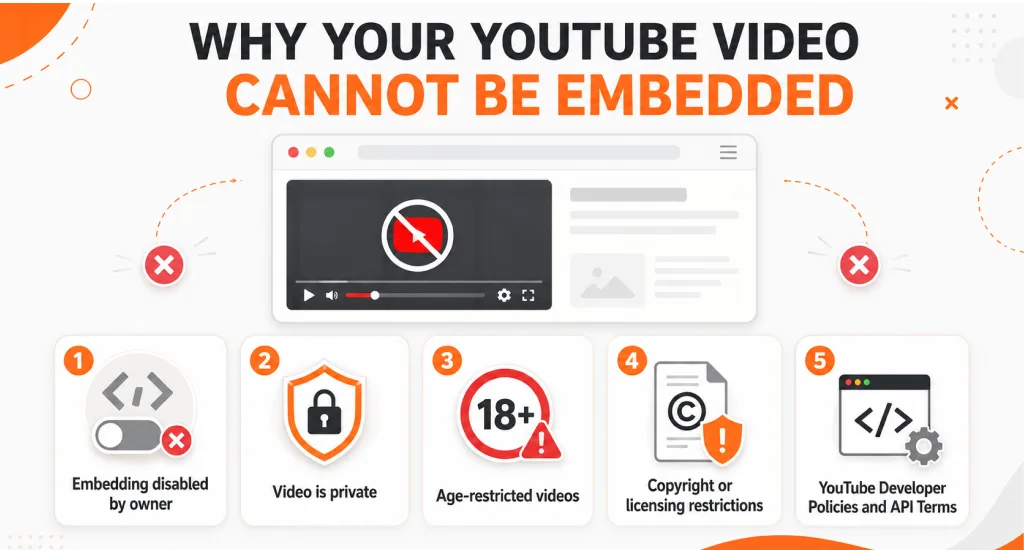
- Embedding disabled by owner: The creator turned off embedding inside YouTube Studio under the video’s details settings
- Video is private: Private videos block all external playback regardless of where the iframe code is placed
- Age-restricted videos: YouTube limits where age-restricted content can play and often blocks it on third-party sites entirely
- Copyright or licensing restrictions: A rights holder or music label has flagged the content and restricted third-party distribution
- YouTube Developer Policies and API Terms: Certain API usage violations or policy breaches can trigger automatic embedding restrictions on a video or channel
- Domain-level restrictions via Content Manager: Advanced partner accounts can block embedding on specific domains or across entire content catalogs
- Third-party website blocking: Some website platforms disable iframe embeds at the platform level, which prevents any YouTube video from loading regardless of its settings
Why Embedded YouTube Videos Are Not Playing (Fix Guide)
Embedded YouTube videos sometimes fail to load on websites due to simple technical or permission issues. These problems usually come from browser limits, website setup errors, network blocks, or policy restrictions that affect video playback.
Browser Issues
Browsers control how videos and scripts run on websites, and strict settings may stop playback.
- Cookies disabled: Some sites need cookies to load embedded video properly
- Privacy mode active: High privacy settings may block video scripts and player features
Website Issues
Web pages must use the correct embed structure for videos to display without errors.
- Wrong iframe code: Incorrect embed code can break video display inside pages
- Missing player script: Some websites fail to load required YouTube player support files
Network Issues
Internet networks sometimes block video connections needed for embedded playback.
- Firewall blocking YouTube: Security systems may stop access to YouTube.com servers
- Restricted network access: Office or school networks may limit video streaming features
Missing HTTP Referer Header
YouTube checks a referer header to confirm where the video request comes from. If this header is missing or blocked, the embedded video may refuse to play on that site. This often happens in strict browser extensions or security tools.
Violations of YouTube Terms of Service
Some videos stop playing when the website or usage breaks YouTube rules. This includes restricted content use, improper embedding methods, or unauthorized distribution outside allowed platforms. In such cases, playback remains disabled until compliance issues are resolved.
Should You Allow Embedding on YouTube Videos? (Pros, Cons & Monetization Impact)
Deciding whether to allow embedding comes down to your goals as a creator. For most channels, the benefits outweigh the drawbacks, but understanding both sides helps you make the right call.
Benefits of Allowing Embedding
Embedding opens your content up to audiences who may never find you through YouTube search alone. When bloggers and website owners embed your videos, your content reaches entirely new people without any extra work on your end.
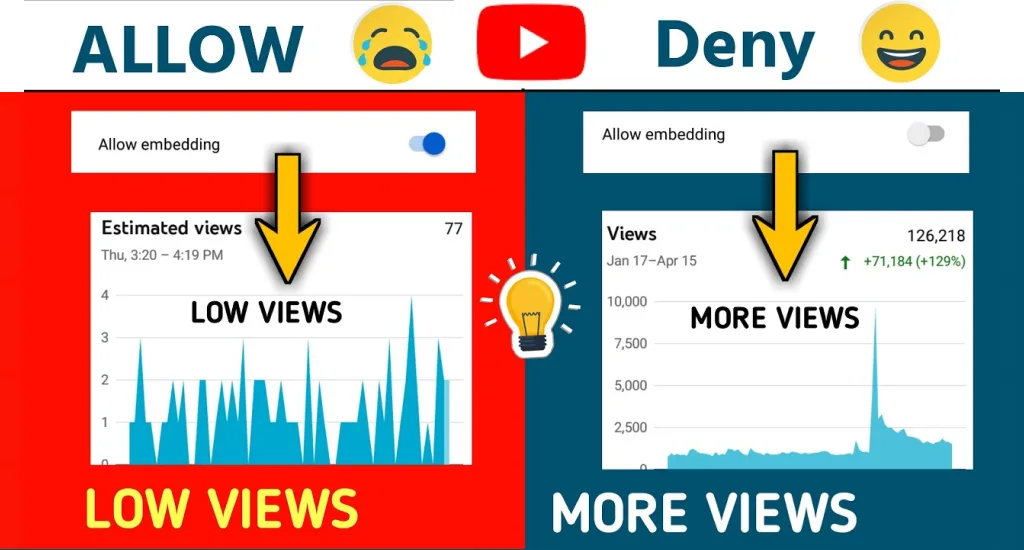
- Increased reach and visibility: Your video appears on external websites and platforms beyond YouTube’s own ecosystem
- More external traffic: Visitors on third-party sites often follow back to your channel after watching
- Better content distribution: Blogs, apps, and social media pages can feature your videos inside their own content
- Faster growth for new channels: Embedding gives newer channels an early visibility boost that organic search takes much longer to build
Drawbacks of Allowing Embedding
- Less control over placement: Any website can display your video in a context that does not match your brand
- Brand context mismatches: Your video may appear alongside content that contradicts your message
- Possible revenue concerns: Off-platform views can generate slightly lower ad revenue in some cases
Does Embedding Affect Views, Analytics, and Monetization?
Embedded views count as real views. Every watch on an external site adds to your total view count and watch time just like an on-platform view would.
As content discovery evolves and tools like LLM AI for business begin surfacing video content through AI-driven platforms, embedded videos are increasingly being pulled into external recommendation engines and interfaces.
YouTube Analytics tracks this under external traffic sources. Embedded watch time counts toward the YouTube Partner Program threshold, and ads can still run on embedded players. Organic embedded views from real visitors are completely valid and treated no differently than views on YouTube itself.
Final Thoughts on YouTube Embedding Settings
Understanding how to allow embedding on a YouTube video is more than just flipping a setting. It combines technical setup, a smart distribution strategy, and a deliberate business decision about where your content lives and who gets to see it.
For most creators, enabling embedding is the right move. It expands your reach, supports watch time growth, and puts your content in front of audiences you would never reach through YouTube alone. Turn it off only when your content or brand specifically requires that level of control.