You cannot directly delete someone else’s review on your Facebook Business Page, but you can report spam reviews to Facebook for removal, turn off the reviews tab entirely, or respond professionally to neutralize their damage.
Facebook’s review system has no purchase-verification requirement, which is the root cause of the problem. Anyone with an active account, real or fake, can leave a review on your page regardless of whether they ever bought anything from you.
However, this article walks through every method available for how to remove spam reviews from a Facebook page, from reporting individual reviews to disabling the tab and responding publicly when removal fails.
Why Spam Reviews Appear on Facebook Business Pages
Spam reviews flood Facebook pages because the platform has no system to confirm a reviewer has ever purchased anything. Three structural gaps make this possible, and understanding them helps with dealing with negative review floods before they damage your rating.
- No buyer verification: Unlike Google, Facebook doesn’t check purchase history before allowing a review.
- Easy fake account creation: Facebook’s signup process requires minimal verification, and fake accounts remain a massive ongoing problem. Meta’s own Community Standards Enforcement Report shows it took action on 1.1 billion fake accounts in Q4 2025 alone.
- Competitor sabotage and bot networks: Some spam reviews come from rival businesses or automated services designed to tank a page’s rating.
Spam reviews drag down your overall star rating, erode trust with people researching your business, and can suppress how often your page surfaces in Facebook search results.
How to Report Spam Reviews on Facebook (Step-by-Step)
Reporting a spam review to Facebook is the primary way to get it removed, and it takes less than a minute per review. This same reporting system also connects to broader AI Marketing Strategies businesses use to protect their online reputation at scale.
Step 1: Open Your Reviews Tab
Log into Facebook and navigate to your Facebook Business Page. On the left sidebar, look for the tab labeled Reviews or Recommendations, depending on your region and page category. If you don’t see this tab listed, click “More” to expand the full menu, since Facebook sometimes hides less-used tabs by default.
Step 2: Find the Specific Spam Review
Scroll through your reviews list until you locate the exact review you want to report. If your page receives a high volume of reviews, use the search or filter option at the top of the tab to narrow results by star rating, which makes spotting a suspicious one-star review easier.
Step 3: Open the Review’s Options Menu
Hover over the review and click the three dots (…) that appear in the top-right corner of that specific review box. This opens a dropdown menu specific to that single review, separate from any page-wide settings.
Step 4: Select the Correct Reporting Option
From the dropdown, choose “Find Support or Report Review.” Depending on your account type and interface version, this option may instead display as “Report Post.” Either wording leads to the same reporting flow.
Step 5: Choose the Most Accurate Reason
Facebook will present a list of reasons for the report. Select whichever matches the situation best: “Spam” for reviews clearly generated by bots or fake accounts, “Scam” for reviews attempting to defraud or mislead, or “It has nothing to do with this Page” for reviews left by mistake or from an unrelated business.
Step 6: Complete the Submission
Follow any remaining on-screen prompts, which may ask you to confirm your reason or add brief context. Click submit once finished. You’ll typically see a confirmation message letting you know Facebook received the report.
After submission, Facebook reviews the report against its Facebook community standards. There is no guaranteed timeline for the Facebook review removal process; it can take anywhere from a few days to several weeks. If Facebook denies the removal, you cannot appeal the same review again through the same reporting method.
Having multiple real people flag spam review Facebook content, such as employees or loyal customers who spot the same fake review, increases the likelihood that Facebook takes action. This tactic gets mentioned in passing elsewhere but deserves more weight than it usually gets.
How to Turn Off Reviews on Your Facebook Page
Turning off reviews hides every review on your page, positive and negative, and works as a temporary shutoff during a spam attack rather than a permanent fix. Here’s how to disable Facebook page reviews temporarily using the current 2026 interface.
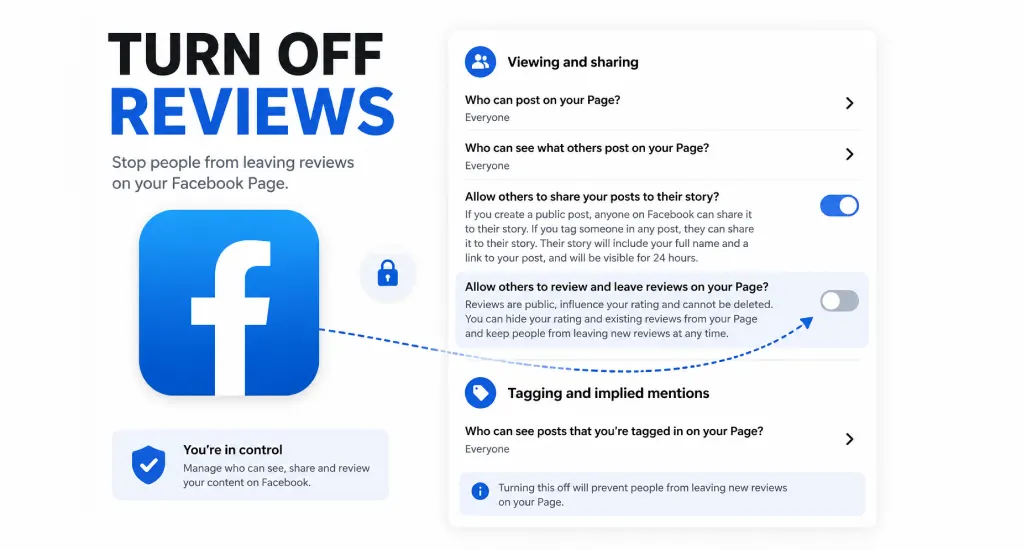
Step 1: Go to your Facebook Business Page.
Step 2: Click your profile picture in the top right, then select Settings & Privacy → Settings → Privacy.
Step 3: Click “Page and Tagging” from the Facebook page settings menu.
Step 4: Find “Allow others to view and leave reviews on your page” and toggle it OFF.
Some pages still run an older interface. If the steps above don’t match what you see, use the legacy path instead: Settings → Templates and Tabs → Reviews → toggle off.
This is the nuclear option. Every review disappears, including glowing ones, and your star rating vanishes from your page entirely. Use this only during an active spam wave, then turn reviews back on once you’ve reported the worst offenders and the attack subsides.
How to Respond to Spam Reviews You Can’t Remove
When Facebook denies a removal request, and you don’t want to hide every review on your page, a calm public response is your best fallback. Learning how to remove spam reviews from a Facebook page through reporting alone won’t always work, so response strategy matters just as much.
Response Framework
Keep your reply short, factual, and free of emotion. A good response acknowledges the review publicly, states plainly that you have no record of this person as a customer, and invites them to reach out directly.
Example template: “We take all feedback seriously, but we have no record of this transaction. Please contact us at [email/phone] so we can look into this.”
This approach works because prospective customers reading your page notice professionalism. A calm, factual reply to an obvious fake review often builds more trust than a page with only perfect five-star ratings ever could. This is part of standard reputation management practice: a mix of reviews handled well tends to convert better than a suspiciously flawless page.
After responding, actively ask real customers for genuine reviews. This dilutes the spam review’s visual weight on your page and gradually restores your overall rating without requiring Facebook to act at all.
How to Spot Fake vs. Legitimate Negative Reviews
Before reporting anything, confirm the review is actually spam and not a real customer complaint. The FTC’s Consumer Review Rule, in effect since October 2024, now allows civil penalties for businesses and bad actors who manipulate reviews, underscoring how seriously regulators treat fake review activity.
Spam review red flags:
- The reviewer has no profile picture or a visible friends list
- Vague language with no specific details about a transaction, product, or service
- The reviewer left multiple one-star review posts across unrelated businesses on the same day
- Review mentions a competitor by name or recommends going elsewhere
- Review has nothing to do with your actual business category
Legitimate negative review signs:
- Specific details about a date, product, or interaction
- The reviewer has a real profile with a visible history and activity
Only report genuine spam. Reporting real negative reviews wastes your credibility with Facebook’s review team and won’t result in removal anyway.
End Note
Knowing how to remove spam reviews from a Facebook page comes down to three tools: reporting individual reviews, temporarily disabling the reviews tab, and responding professionally when removal isn’t possible. None of these methods offers instant guarantees, since Facebook’s review process runs on its own timeline.
Combining all three, backed by real customer reviews and consistent monitoring, gives your page the best defense against spam without sacrificing the trust genuine reviews build over time.