You upload great photos, but Google keeps rejecting them. It feels frustrating, especially when you just want your business to look good online. Many business owners ask, “Why is Google rejecting my business photos?”
The truth is, Google Business Profile has strict rules about what photos are allowed, just as it has specific policies for editorial summaries on business profiles. These rules cover content, quality, and technical details to make sure users see real and helpful images.
In this guide, you will learn the main reasons photos get rejected, how to fix these issues, and steps to prevent them in 2026. We will also cover new algorithm updates, review automation, and temporary 24 to 48-hour bugs.
Overview of Google’s Photo Review System (How Rejections Work)
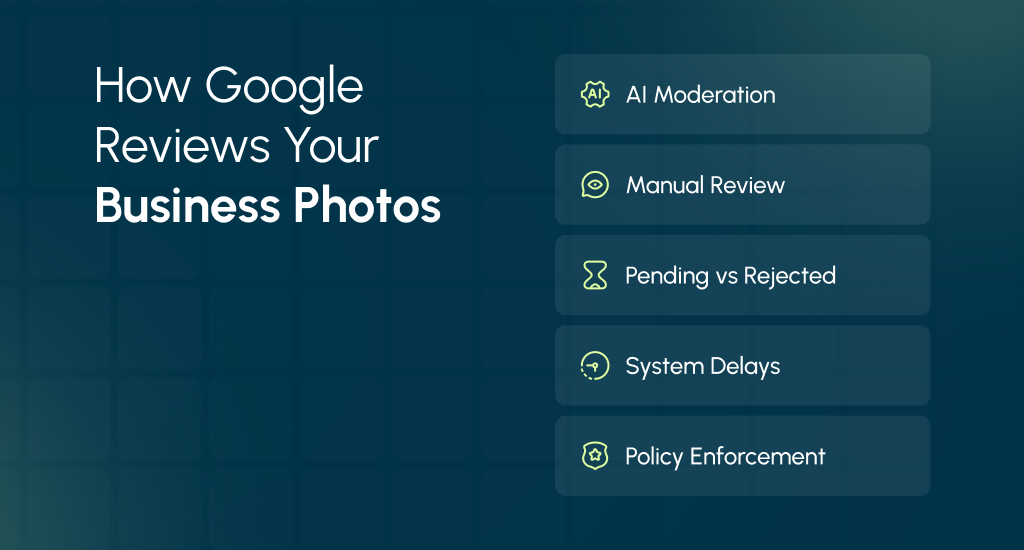
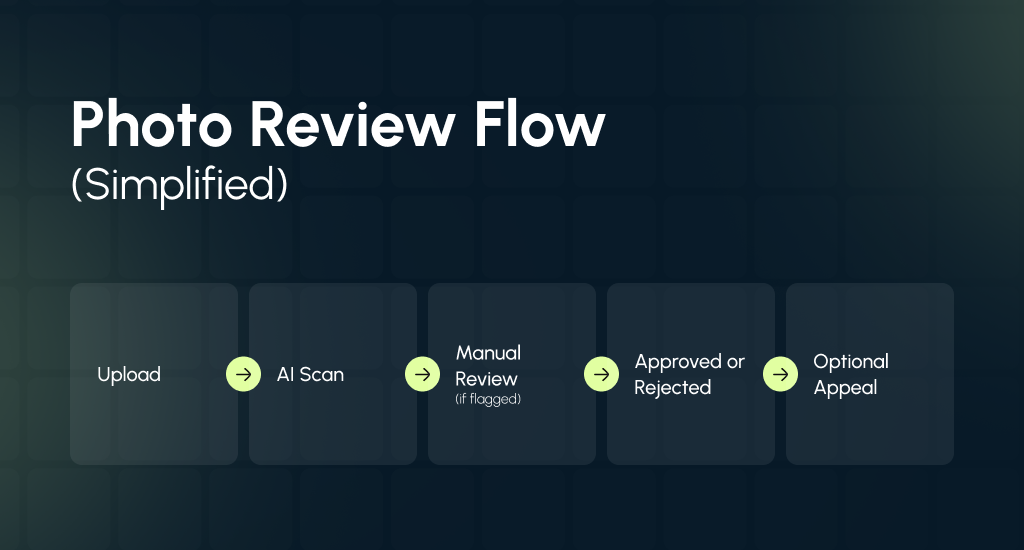
When you upload photos to your Google Business Profile, they don’t appear instantly. Google uses a mix of technology and human checks to make sure every image meets its rules.
-
AI Moderation and Automated Filters
First, Google’s AI scans every image. It checks if the photo follows Google’s content rules, looks clear, and includes correct metadata. If the photo fails any check, it may be flagged.
-
Manual Review by Humans
Flagged photos are sent to human moderators. They look for issues that AI might miss, like inappropriate content or misleading images. Sometimes, photos are rejected immediately if the problem is obvious.
-
Rejected vs. Pending Review
A photo labeled “Rejected” will not appear on your profile. “Pending review” means the photo is still being checked. Pending status can last a few hours or even 24-48 hours.
-
System Delays and Bugs
Google’s review system occasionally slows down. New algorithm updates or small system bugs can delay photo approvals for one to two days. This delay does not always mean there is a problem with your image.
-
Photo Policy Enforcement
Google strictly enforces its photo rules to keep business listings trustworthy. If you properly follow guidelines on content, quality, and technical standards, your photos will get approved faster.
15 Common Reasons Google Rejects Business Photos (2026 Update)
Google usually rejects photos when they’re in the wrong format (only JPG or PNG accepted), below 720×720 pixels resolution, contain excessive text overlays beyond 10%, include copyrighted or stock images, or show irrelevant content unrelated to your business. Here are the top 15 reasons Google can reject your GMB photos.
1. Unsupported File Format
Google accepts only JPG and PNG files for business photos. If you upload a photo in another format, like HEIC or WEBP, it may be rejected right away.
Always save your image as a standard JPG or PNG before uploading. These formats are easier for Google’s system to read and check for authenticity.
2. Image Too Small or Low Quality
Photos below 720×720 pixels often get rejected because they appear blurry or unclear on large screens.
To fix this, you should take pictures with a smartphone or a camera set to high resolution. You can also optimize your file naming following SEO recommended character size for image file names, crop lightly, but keep the main subject clear and centered. The sharper the image, the better it looks to users, and the faster Google approves it.
3. Oversized File Above 5MB
Large photo files can slow down Google’s systems, so any image over 5MB might not upload properly.
Before uploading, try to compress your image slightly without losing quality. For web optimization, understanding the difference between background properties can help you display images properly across different platforms. Many free online tools can reduce file size while keeping the photo clear and natural.
4. Blurry or Poorly Lit Photos
Photos that look blurry, dark, or pixelated often fail Google’s quality checks. The AI may think such images are fake or low-value.
You should make sure your photos have enough light, proper focus, and steady framing. Natural daylight usually gives the best results and helps your business look more inviting.
5. Repeating or Duplicate Photos
Uploading many similar or identical images can trigger a rejection. Google wants each image to show a different angle or detail of your business.
Try showing variety:
- One of the storefronts
- One of the interior
- A few of the products or staff
In this case, you should try to avoid repeating the same photo several times.
6. Text or Promotional Banners on Images
Photos with big text overlays, prices, or ads are not allowed. Google considers them promotional, not informational. Also, having too much text is another reason, Google rejects it.
Keep your images clean and natural. If you want to share offers or messages, you should use Google Posts instead. That is the right place for text promotions.
7. Photos with Watermarks or Copyrighted Logos

If your photo has another company’s logo, watermark, or copyright mark, Google may reject it to avoid ownership issues.
Always try to upload original pictures that belong to your business. If your photographer added a watermark, ask for a clean copy before posting.
8. Using Stock Images Instead of Real Photos
Google dislikes stock photos because they don’t show your actual business.
Examples of what not to upload:
- Generic office pictures from online libraries
- Product photos from a manufacturer’s website
You should take real photos of your store, team, or products. Real images build trust and pass Google’s authenticity check.
9. Unrelated or Misleading Photos
Photos that don’t match your business type or location can be flagged as misleading content. For example, posting a beach picture for a dental clinic confuses users.
You should make sure every photo shows something related to your services, team, or space. Clear and relevant images help Google and customers trust your listing.
10. Inappropriate or Sensitive Content
Google instantly rejects photos that include nudity, violence, hate symbols, or offensive signs. These go against its content policy.
Keep your gallery family-friendly and professional. Even background posters or decorations should not show sensitive material. Google’s AI can detect these elements quickly.
11. People’s Faces or Private Information
Photos showing faces, license plates, or personal documents without consent can be removed. Google aims to protect privacy.
If people appear in your photos, you should make sure they’re aware and comfortable. You can blur private details using any free editing tool before uploading.
12. Reposting the Same Image Repeatedly
Trying to upload the same image many times after rejection can cause your account to be flagged. Google may see it as spam.
Instead, you should fix the issue first. You can adjust brightness, rename the file, or crop it slightly, and then upload once. Repeated uploads only slow down your approval chances.
13. AI-Generated or Heavily Edited Photos
In 2026, Google’s filters are smarter at detecting AI-generated or overly edited photos.
Avoid images made entirely with artificial intelligence or ones with filters that change colors unrealistically. Natural and original photos taken by a camera are always safer and more trusted by Google’s moderation system.
14. Photos That Misrepresent the Business
Any image that gives a false idea about your business can be removed. For example, showing a large office when you run a small shop misleads users.
You should use honest pictures like your real store, your real staff, and actual products. Transparency builds long-term trust with customers and helps your profile rank better.
15. Very New Business Profiles
Sometimes, photos from newly created Google Business Profiles (less than two weeks old) get rejected even if they follow all rules.
It happens because new listings go through a stronger verification phase. Just wait a few days, keep your business information accurate, and try again once your profile gains full verification status.
How to Fix Rejected Google Business Photos (Step-by-Step)
Fixing a Google Business Photos rejection is not hard if you follow a clear process. These steps can help you correct issues, re-upload images, and improve approval chances.
Image 3: How to Fix Rejected Google Business Photos
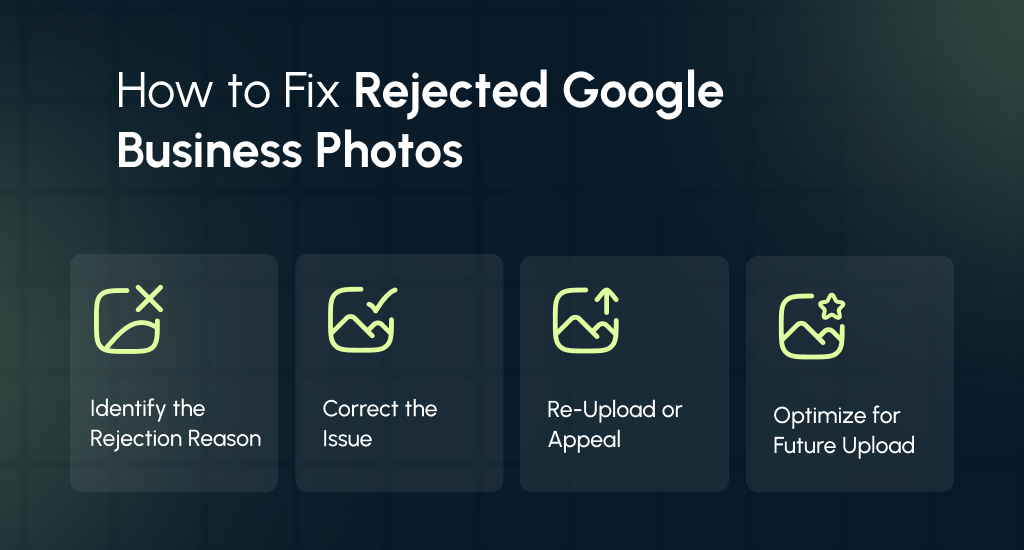
Step 1: Identify the Rejection Reason
Open your Google Business Profile dashboard and go to Photos. You should check each image’s status: Approved, Rejected, or Pending.
Hover over the photo to see Google’s rejection message. If it’s unclear, you can use Google Maps Support chat to ask why the image was rejected. If you know the reason, it can help you fix it correctly.
Step 2: Correct the Issue
Once you know why a photo was rejected, you should address the problem:
- Watermark or logo: Re-upload the original image without overlays.
- Blurry or low-resolution: Use a higher-quality image, 720 pixels or more.
- Wrong format: Convert the file to JPEG or PNG.
- AI filter issue: Avoid heavy edits; use only natural color correction.
- Policy violation: Remove private faces, license plates, or anything offensive.
Step 3: Re-Upload or Appeal
After making edits, you should upload the corrected image to your profile. If Google rejects it again, go to GBP Help, select Contact Support, and choose “Photo rejected.” You should attach the image, explain that you own it, and request a manual review.
Step 4: Optimize for Future Uploads
To avoid future rejections, keep images under 5 MB and use descriptive and natural filenames like “storefront-arizona.jpg.” Keep metadata intact; camera info can prove authenticity and speed up approvals.
These steps ensure your images follow Google’s rules and appear properly on your business profile.
Google’s Photo Quality & Technical Standards (2026 Reference)
Before uploading, it really helps to know what Google expects from a good business photo. These standards guide its system to check whether an image looks real, clear, and trustworthy. The chart below shows the main photo rules for 2026.
Image Upload Guidelines
| Specification | Requirement | Recommended |
|---|---|---|
| File type | JPEG, PNG | JPEG (smaller file size) |
| Min resolution | 250 × 250 px | 720 × 720 px or higher |
| Aspect ratio | 1:1 (square) or 4:3 | Natural composition |
| File size | < 5 MB | 2-4 MB |
| Lighting | Natural / Balanced | Avoid flash glare |
| Editing | Light adjustments only | No filters, text, or logos |
Bonus Tips:
- Don’t upload AI-generated or fake images; Google’s system detects and blocks them automatically.
- Always include geo-tags for authenticity and better local ranking.
- Unsure about quality? You should try uploading through the Google Street View tool first to test visibility and clarity.
Google Business Photo Upload Best Practices
Google lets businesses upload many photos, but there are smart ways to manage them. Clear ideas about how many to upload, when to update, and what types to include can help your profile look active and professional.
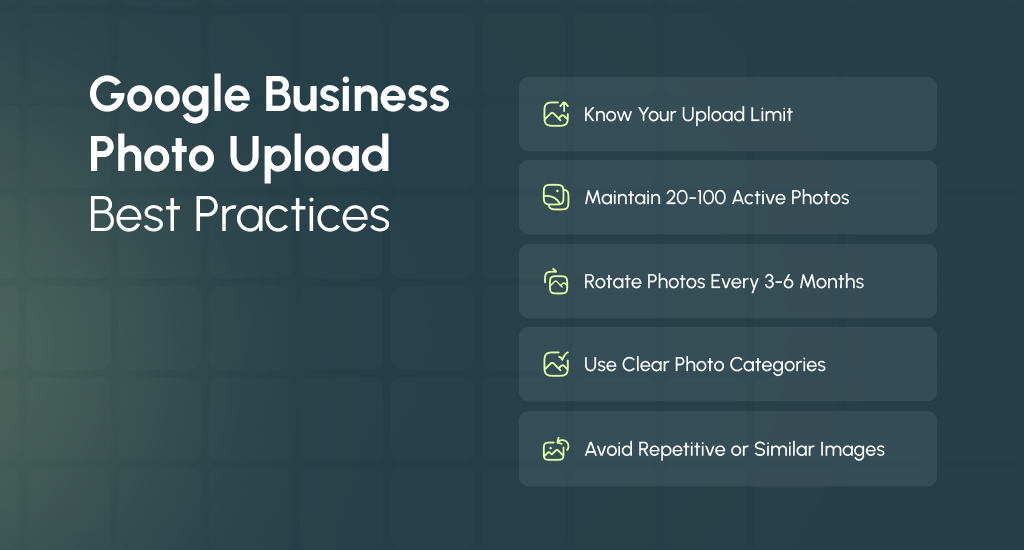
Understand the Upload Limit
Each location can have up to around 250 photos on Google Business Profile. This number may vary slightly, but going beyond it can cause slow loading or missing images. You must keep your gallery well-organized instead of filling it with random pictures.
Keep an Active Set of 20-100 Photos
Google recommends maintaining 20 to 100 photos that show your business clearly. You can include a mix of interior shots, exterior views, product displays, staff photos, and your logo. This range is enough for users and the algorithm to understand your brand.
Rotate Photos Every Few Months
You should replace older pictures every 3 to 6 months to show that your business is active. Fresh photos help your profile stay visible and signal to Google that your listing is well-maintained.
Use Proper Photo Categories
Organize images under clear types:
- Cover photo: The main image that appears in search.
- Profile photo: Represents your brand identity.
- Interior and exterior: Show your space and surroundings.
- Product and team: They highlight what you sell and who serves customers.
Avoid Repetitive or Similar Photos
Uploading too many near-identical images can reduce quality and trigger rejections. You should choose different angles, lighting, or subjects to create a natural and varied photo gallery.
Best Practices to Prevent Photo Rejection in the Future
You can avoid many rejections on your Google Business Profile by following simple but effective rules. These can help your photos stay alive and look professional.
Follow Google’s Content & Technical Guidelines
You should make sure your image meets Google’s rules for both what you show (content) and how you show it (technical). For example, images must be in JPG or PNG format, well-lit, clear, and true to your business. When you stick to those basics, you reduce the risk of automatic rejection by the review system.
Avoid Watermarks, Logos, or Text Overlays
Photos that display large logos, text banners, or promotional overlays often get flagged. These make the image look like an ad, and Google favors natural, genuine photos.
Instead, use clean images that show your business environment, products, or team without extra graphics.
Upload from a Verified Owner or Manager Account
You should always use the account verified as the owner or manager of your business profile to upload photos. Uploads from customer-added photos or random sources may not carry the same trust.
When the upload comes from the official account, Google recognizes it as more authentic. Also, it helps avoid automated flags or checks.
Maintain Visual Consistency: Brightness, Angle & Framing
Your photos should look like they belong together. Use similar lighting, natural angles, and keep the framing simple.
In fact, our research shows that listings with high-quality recent photos can receive 42 % more direction requests and 35 % more website clicks than those without. This consistency builds trust and makes users more likely to engage.
Keep Originals Backed Up in Case You Need to Appeal
You should save your original image files (with date/time taken, if possible) as part of your overall website maintenance and backup strategy. If a Google Business Photos rejection occurs and you decide to challenge it, having the original photo helps you show authenticity.
Clear ideas about how many to upload, when to update, and what types to include help your profile look active and professional.
Check Photo Performance Metrics in Insights
In your Business Profile dashboard, you can view “Photo Views” and other engagement metrics. You can use these stats to see which images are working.
For example:
- Which photo types (interior, exterior, team) get more views?
- Are new uploads getting acknowledged or ignored?
By studying the data, you can upload more of what works and drop what doesn’t.
Tools and Resources for Photo Compliance
Google Business Photos management becomes easier when you use the right tools. These resources help you check image quality, size, and policy compliance before uploading them to your profile.
-
Google Business Profile Help Center
It is the official source for all image rules and updates. You can learn what types of photos are allowed, size limits, and how to fix rejections. It’s the best place to verify information before uploading.
-
Google Maps Support Chat
If a photo gets rejected and you don’t understand why, you should contact Google Maps Support. The chat team can review your photo manually and explain the rejection reason clearly.
-
TinyPNG or CompressJPEG
These free online tools help reduce file size without lowering quality. Photos under 5 MB upload faster and stay within Google’s size limit. Thus, it can ensure smooth approval.
-
GeoImgr
GeoImgr lets you add or check location data (geo-tags) in your images. Photos with proper geo-tags look more authentic and often perform better in local search visibility through Local SEO optimization.
-
Google Street View Studio
Street View Studio lets you test photo clarity, brightness, and alignment before uploading to your Business Profile. It’s also useful for ensuring that panoramas or 360-degree images display correctly.
-
Canva or Snapseed
For small edits like adjusting brightness or cropping, these tools are safe. They keep the image natural. Also, this type of edit can help you meet Google’s photo quality guidelines.
Industry-Specific Google Business Photo Tips
Different businesses need different photo styles. What works for a restaurant may not work for a law office. These simple tips can help you match Google’s photo rules for your industry.
For Restaurants & Cafes
Food photos attract customers fast, but Google rejects images with text or prices. You can focus on showing real dining experiences and inviting spaces.
- Avoid menus or pictures with prices or text overlays.
- Capture clear shots of dishes and plating.
- Show the restaurant ambience, seating, and decor.
- Include staff serving or customers (only with consent).
For Service Businesses (Plumbers, Electricians, Cleaners, etc.)
These businesses look more trustworthy when they show real work, not staged images. You should highlight your tools, uniforms, and vehicles professionally.
- Take photos of your team at work (no customer property close-ups).
- Display branded vehicles or tools for credibility.
- Try to keep the background tidy and well-lit.
- Always avoid showing personal or private areas.
For Retail Stores
Storefront and interior photos help people recognize your business instantly. You can keep signage clear and visible from a natural angle.
- Show your logo and store name clearly.
- Include wide shots of the interior and product displays.
- Try to avoid cropped or blurry photos of signs.
- You should keep aisles and shelves clean and organized.
For Healthcare & Legal Services
Privacy and professionalism are major players in these fields. You must focus on respectful visuals that build real trust.
- Never include patient or client faces without consent.
- Blur personal data or documents if visible.
- Try to capture clean and calm office spaces.
- Highlight staff professionalism and equipment setup.
Photo Review Timeline & Appeal Process (What Happens After Upload)
After you upload a photo to your Google Business Profile, it doesn’t appear instantly. Every image goes through Google’s review system to make sure it meets content and quality standards.
Typical Review Time
Most photos are generally reviewed within 24 to 48 hours. During this time, you might see one of three statuses on your photo:
- Approved: The photo meets all rules and appears live.
- Pending Review: Still being checked by Google’s system.
- Rejected: The photo failed one or more checks.
How the Review Works
The review starts with AI moderation. The system quickly scans the image for file format, resolution, content type, and any possible violations. If it detects something unclear or unusual, the photo moves to human moderation for a final decision.
Appealing a Rejected Photo
If your photo gets rejected, you can request a manual review through Google Support. It usually takes 1 to 5 business days. You should attach your original image, explain that it belongs to you, and ask for a manual recheck.
Once the review is done, you’ll receive a notification in your email or inside the GBP dashboard showing the final decision.
Final Verdict
Keeping your Google Business photos compliant isn’t just about approval; it’s about building trust and visibility. By following Google’s content, quality, and technical guidelines, you can ensure every image strengthens your brand’s online presence.
So, stay consistent, review performance insights, and keep photos authentic to maintain a professional and high-ranking profile that attracts real local customers.