Deleting a Google Business Profile is important when a business closes, changes ownership, or no longer needs an online presence. Managing outdated listings helps prevent customer confusion and keeps search results accurate and trustworthy.
Many users confuse deleting a profile with marking it permanently closed. Understanding the correct process ensures your business data is removed properly from Google Search and Maps, avoiding duplicate listings, wrong directions, or misleading contact information.
Read this guide to learn how to delete Google Business Profiles the right way. You will see a clear five-step path, choice help, phone steps, and simple answers before any action.
Quick Decision Guide – Choose the Right “Delete” Option
You should pick your path based on your goal: stop managing work, close the business, or remove an invalid listing from Maps. Google offers different actions. Each action serves a clear purpose. The wrong choice can leave the listing live on Search and Maps.
For businesses that need comprehensive guidance on managing their online presence effectively, our Local SEO services can help maintain accurate listings across all platforms while protecting your brand reputation.
This guide helps decide the right step fast. It explains how Google Business Remove Listing works, when to delete a business on Google, and how to remove a business from Google Maps. Also, you don’t have to risk reviews or public trust.
Decision Paths You Can Choose
- Stop Managing Only
‘I don’t want to manage it anymore.’
Remove yourself from the profile or transfer ownership to another user. The business still appears on Search and Maps. This option suits agencies or past owners who no longer handle updates. - Business Closed Forever
‘The business will never reopen.’
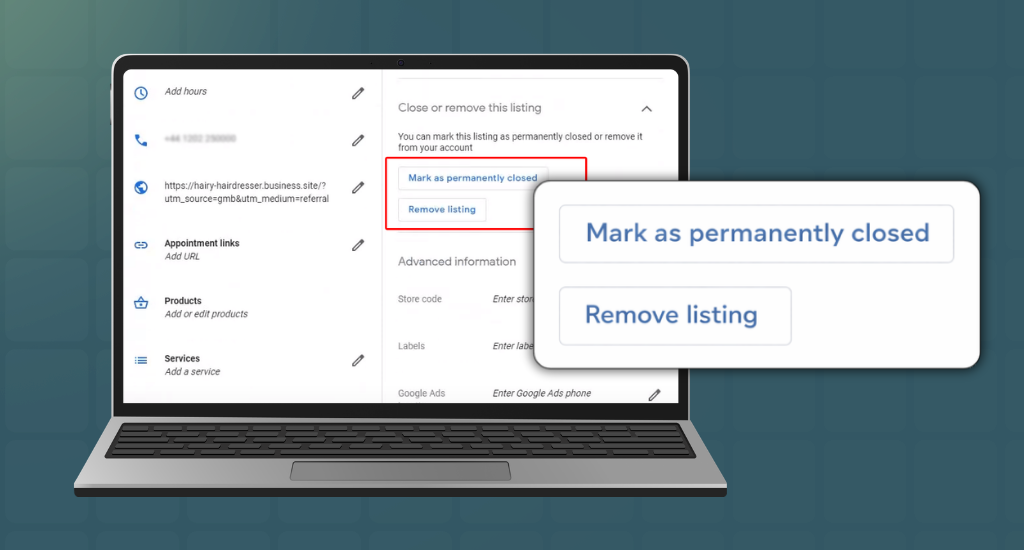
Mark the profile as permanently closed. This keeps reviews visible but shows clear closure. Google recommends this step before any removal request. - Full Owner and Content Removal
‘I want to wipe owner access and profile data.’
The primary owner can remove profile content and managers. This deletes control and data but may not erase the listing from Maps right away. - Listing Should Not Exist
‘Fake, duplicate, or moved business.’
Use Google Maps and select Suggest an edit. Request removal with the correct reason. This is the proper way to remove a business from Google Maps.
Option A: Completely Remove or Delete the Profile (Primary Owner Method)
Some owners want full removal, not a closed label. This option explains how to delete a Google My Business listing by removing all owner control and profile data. This method works only for the primary owner and uses official Business Profile settings.
If you’re the primary owner, you can delete management access by going to Business Profile settings → Remove Business Profile → Remove profile content and managers and confirm the removal.
Step 1: Sign in With the Primary Owner Account
Log in using the Google account listed as the primary owner of the Business Profile. Only this account has permission to remove profile content. Manager or co-owner accounts will not see deletion or removal options.
Step 2: Open the Business Profile
Go to Google Search or Google Maps while signed in. Search for your exact business name. If you are the primary owner, the Business Profile management panel will appear directly at the top.
Step 3: Open Business Profile Settings
On the Business Profile panel, locate the three-dot menu icon. Click it to open advanced options, then select “Business Profile settings” to access ownership, permissions, and removal controls.
Step 4: Choose the Remove Option
Inside settings, choose “Remove Business Profile,” then select “Remove profile content and managers.” This option deletes owner access, removes managers, and initiates full profile removal instead of marking it closed.
Step 5: Confirm the Removal Flow
Google will display a confirmation screen explaining the consequences. Click “Continue,” then select “Remove” to confirm. Finish the process by clicking “Done,” completing the profile removal request successfully.
What This Action Really Does
- This step removes access, not instant public removal.
- The profile may still appear on Search and Maps.
- Google reviews the listing and decides on final visibility.
Important Things to Know First
- Only the primary owner can complete this process.
- Reviews may stay visible after removal.
- Public visibility depends on Google rules, not owner choice.
You should use this method only when you want to remove control through Business Profile settings. For fake, moved, or duplicate listings, a Google Maps edit works better.
What Happens After You Delete a Google Business Account?
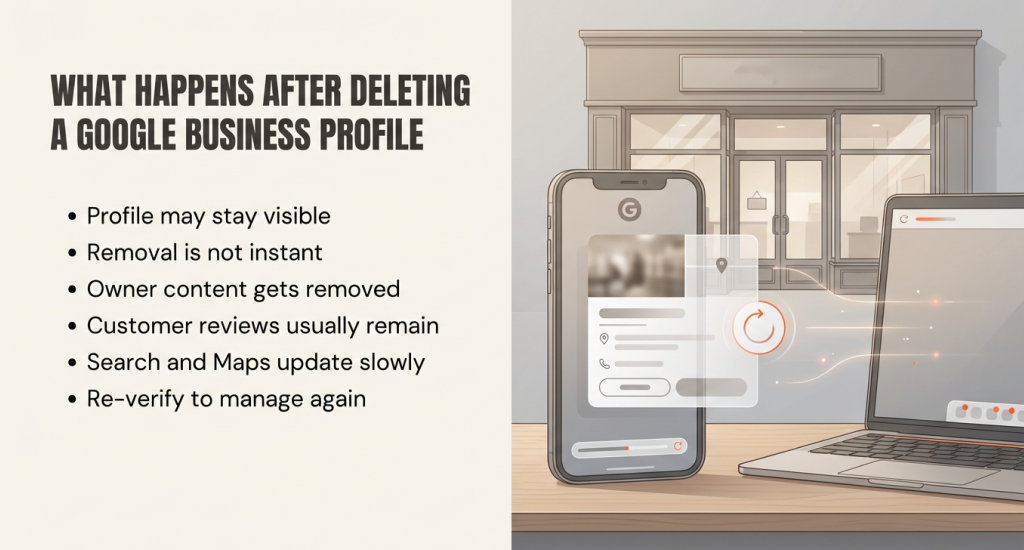
Deleting a Google Business Profile does not make it vanish instantly. Google explains that the profile can still appear on Search and Maps for some time. Closed or deleted listings often disappear slowly, sometimes taking days or weeks to fully vanish.
To develop a comprehensive strategy for managing your digital presence beyond Google Business Profile, Digital Strategy Consulting helps businesses navigate platform changes, ownership transfers, and online reputation management.
Deleting or removing owners and managers is not instant on the public side. A profile may still appear on Search or Maps for a while, and closed profiles can slowly disappear.
Owner and Manager of Content
When you remove your account, everything you added is gone from your side. This includes:
- Posts you shared on the profile
- Photos and videos uploaded by owners or managers
- Replies to reviews you wrote
Once deleted, you cannot edit or recover these items. Google removes the access first. Public visibility changes may take longer.
Customer Reviews and Ratings
Most customer reviews stay visible even after deletion. These are user-generated content, which Google does not delete just because the owner has left. Ratings, comments, and star reviews remain on Maps and Search. Only owner-added posts and replies are removed. To better understand review management and why reviews might disappear, check 15 Reasons Why Your Google Business Reviews Are Disappearing.
Profile Visibility on Search and Maps
The profile may still appear in Search results or on Google Maps. Google decides visibility based on:
- Listing age and activity
- Trust signals in Google’s system
- Whether the business is marked permanently closed
Some listings disappear in a few days, others may take weeks. Even after deletion, people may still see old photos or reviews temporarily.
Timeline for Full Removal
A common question is how long it takes to delete a Google Business Profile. There is no exact timing. Google processes changes gradually. It can take anywhere from several days to a few weeks for complete disappearance from public view.
Managing the Profile Again
If you want to control the profile in the future, you must re-verify ownership. Google requires proof before you can post, reply to reviews, or edit business details. Until re-verification, all control is locked.
Option B – Mark as Permanently Closed (Best Alternative to “Delete”)
If your business is no longer operating, marking it permanently closed is often the cleanest option. Customers see the closure, and Google may reduce the listing’s visibility over time. This method keeps reviews visible and avoids sudden confusion online.
If you’re considering a business pivot or rebrand rather than closing, Website Redesign services can help transform your online presence to support new business directions.
Marking a profile as permanently closed signals to customers that it is no longer active. Google may adjust visibility, but reviews and historical data stay on Maps and Search.
Step 1: Open Your Business Profile
Go to your business listing on Google Search or Maps. You should make sure you are signed in with the account that manages the profile. The Business Profile Manager works for single or multiple locations.
Step 2: Choose Close Option
Click Business Profile settings from the three dots menu. You should select Mark as Permanently closed. It changes the status visible to customers without deleting the listing.
Step 3: Understand the Difference
- Temporarily closed: Use when your business will reopen soon. Customers see a temporary notice.
- Permanently closed: You can use it when the business will not reopen. Customers know it is fully closed.
Step 4: Close Multiple Locations
If you manage several locations, open Business Profile Manager. You should select multiple listings and apply Permanently closed at once. It saves time and keeps information consistent.
Important Notes
- Closure is not deletion. The profile remains on Google. Reviews, photos, and ratings stay intact.
- Visibility may reduce over time. Google slowly lowers ranking for closed profiles in Maps and Search.
- Customers can still see old reviews, which keeps your business history transparent.
Marking as Permanently closed is simple, safe, and avoids removing content you might need later. It communicates closure clearly without causing confusion for customers.
Option C – Remove the Listing From Google Maps (Suggest an Edit / Doesn’t Exist Here)
Some listings do not belong on Google at all. It can happen if a business is a duplicate, has moved, or never existed at that location. In these cases, you can remove a business from Google Maps using the built-in Maps editing tool.
If the listing shouldn’t be on Google, use Google Maps’ Suggest an edit → Place closed or not here workflow to request removal. Google reviews the request before removing it.
Step 1: Open the Listing in Google Maps
- Go to Google Maps on your phone or computer.
- Search for the business name exactly as it appears.
- Make sure the profile shown matches the listing you want to remove.
- Verify the address and other details to confirm it’s the correct one.
Step 2: Tap or Click Suggest an Edit
- On the business profile, look for the “Suggest an edit” button.
- Tap or click it. This opens Google’s reporting menu.
- You will see two main options: “Change name or other details” and “Place closed or not here”.
- Select “Place closed or not here” to report that the listing shouldn’t exist.
Step 3: Choose the Correct Reason
- Pick the reason that fits the situation:
- Doesn’t exist here: Use if the business is not at the location or never existed.
- Duplicate: Use if the same business already has another listing.
- Moved: Use if the business moved to a new address and the old listing is outdated.
- Double-check that your reason matches the actual issue. Choosing the wrong reason can delay Google’s review.
Step 4: Provide Extra Details (Optional)
- You can add a short note explaining why the listing is wrong.
- Include any evidence, like website links or address info, to help Google decide faster.
Step 5: Submit the Request
- After choosing the reason and optionally adding details, click Submit.
- Google reviews the request. This may take a few days to several weeks.
- You will not get immediate confirmation. The listing may disappear slowly as Google checks the report.
Important Notes
- This method does not require owner access. Anyone can report incorrect listings.
- Only use this for listings that should not exist. Valid but closed businesses should use the Permanently closed method.
- Google reviews reports carefully. Removal is not instant, and duplicate reports can speed up verification.
If you use ‘Suggest an edit → Place closed or not here’, that will be the safest way to remove incorrect or invalid listings. It keeps Maps accurate for everyone and avoids accidentally deleting valid business profiles.
Option D – Transfer Ownership or Remove Yourself (If You Sold the Business)
If another person should manage the profile, like a new owner, franchise team, or client, do not delete it. Transferring ownership or removing yourself keeps the listing stable and protects reviews, photos, and business history that customers have already trusted. When transitioning business ownership, professional Website Maintenance, Security, and Backups ensure your digital assets remain protected during the handover process.
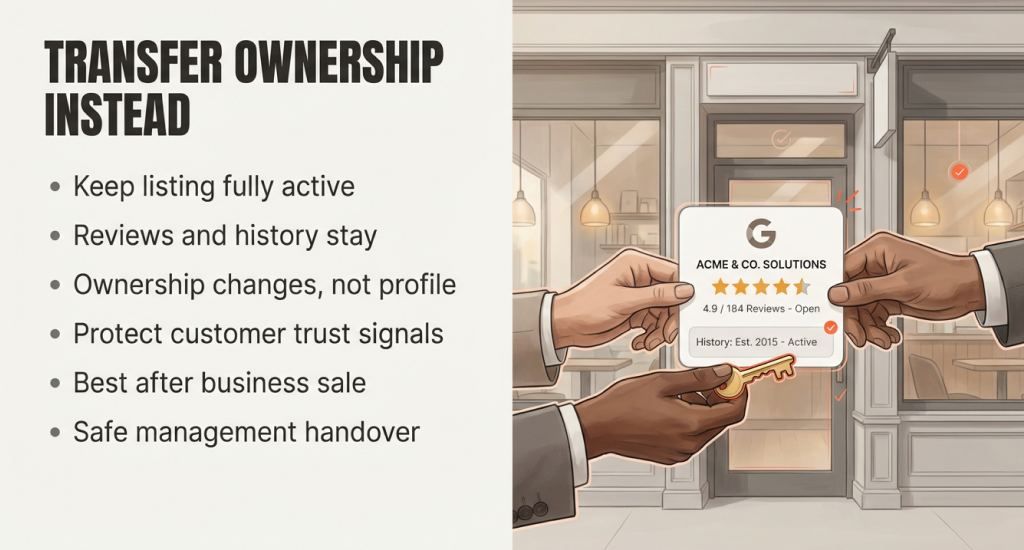
If someone else should manage the profile, transfer primary ownership, or remove you. It keeps the listing stable and preserves history, like reviews.
Transfer Primary Ownership to the New Manager
Start by opening your Business Profile and going to People and access. This section shows everyone who has access to the profile, including owners and managers. Find the person who should fully control the business next.
Change their role from owner to primary owner. Once Google confirms this change, that person becomes responsible for all settings, edits, and future decisions. This step is important when a business is sold, handed to family, or moved to a new company.
Confirm the Role Change
After you assign the primary owner role, wait for Google to apply the update. This process may take a short time. During this period, avoid removing yourself too early. The new primary owner should confirm access and check that everything works correctly before you leave the profile.
Remove Yourself From the Profile
If you no longer want any involvement, return to People and access. Select your own name and choose to stop managing. It removes your access as an owner or manager. If you are still the primary owner, Google will not permit removal until another user holds that role. Transfer must always come first.
Why This Option Works Best
This option does not delete the listing. It keeps reviews, photos, and visibility intact. Customers still find the business on Search and Maps. Only management control changes hands. It is the safest choice after a sale or handover.
You should use this method when the business continues under new leadership, but should keep its online presence unchanged.
How to Delete or Remove a GBP on Phone (Android or iPhone)
You can manage or remove a Business Profile directly from your phone. Google allows control through Search or the Google Maps app. Most edits appear in the Business tab, but removal actions stay inside Business Profile settings.
You can manage your Business Profile from Google Search or the Google Maps app. On Maps, many edits are found under the Business tab, while removal options usually live under Business Profile settings.
Open the Profile on Your Phone
Open the Google Maps app on Android or iPhone. You should make sure you are signed in with the account that manages the profile. Search for your business name. When the profile appears, tap it to open the management view. You may see a Business tab if the account has access.
Understand the Business Tab Role
The Business tab allows basic edits like hours, address, or category. You can also reach edit options through Edit profile. This area helps with updates, but it does not contain delete controls. Many users stop here and assume removal is missing.
Find Business Profile Settings
For removal, you should look for the More option shown as the three dots. Tap it from the profile view. Select Business Profile settings. This section holds ownership, access, and removal options. Google keeps deleting actions here to prevent mistakes.
Remove the Business Profile
Inside settings, you should choose Remove Business Profile. Follow the on-screen confirmation steps. This action removes management access and profile content from your account. Public visibility may remain for some time based on Google rules.
Important Notes for Phone Users
This process works the same on Android and iPhone. If you later want control again, Google will ask for re-verification. Phone access manages the profile fully, but delete paths always route through Business Profile settings.
This method explains how to delete a Google Business Profile on Android and remove a Google Business Profile on a phone safely without desktop access.
Troubleshooting (Most Common Problems)
Removal issues frustrate many owners. When people say they can’t delete a Google Business Profile, the cause is often simple. Missing access, role limits, or system limits hide the option. Most fixes start with checking who controls the profile.
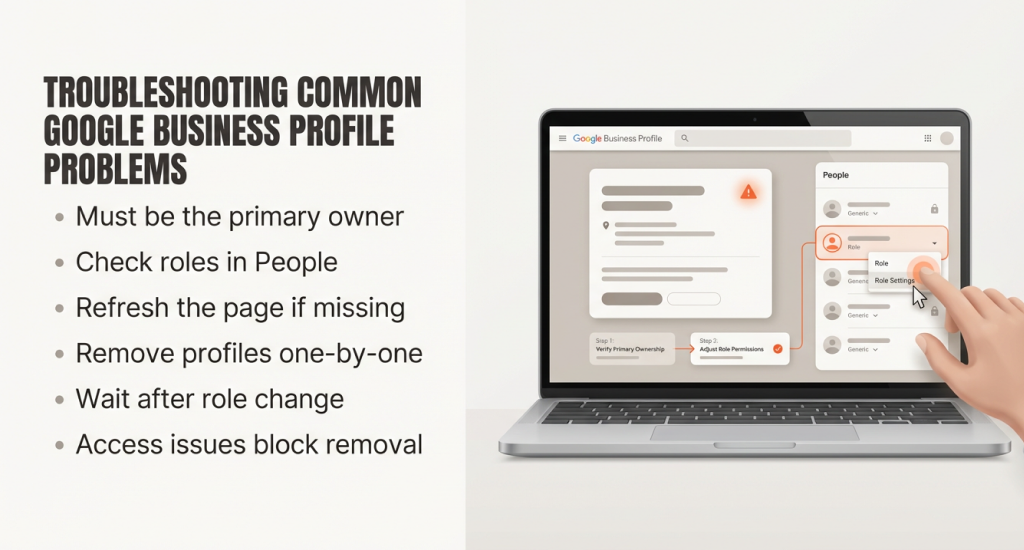
If you don’t see the remove or delete option, it is usually a permissions issue. Most removal actions require being the primary owner.
You Are Not the Primary Owner
If you are not the primary owner, Google blocks delete actions. Owners and managers cannot remove content or managers. This explains why the business profile does not appear even after correct navigation.
Check Roles in People and Access
Open People and access from profile settings. Review each user role carefully. Confirm who holds primary owner status. If needed, you can ask the current primary owner to transfer control before any removal attempt.
Remove Option Missing in Settings
Sometimes the menu loads without the remove option. It happens because of role limits or account sync delays. Refresh the page, sign out and back in, or open the profile from Search instead of Maps to recheck settings.
Errors When Removing Multiple Profiles
Bulk actions can fail. An error removing multiple profiles often appears when accounts manage many locations. Google recommends removing one profile at a time. This process can avoid system blocks and incomplete actions.
Access Was Recently Changed
After a role change, Google may take time to update access. You should wait a short period before retrying removal. Attempting too soon may hide options or trigger errors.
Most delete issues trace back to access limits, not system failure. You should confirm roles first. This step solves the majority of removal problems without extra support requests.
Conclusion
Most “deletions” are really one of three actions: remove management access, mark permanently closed, or request removal on Maps. You should choose the right option based on your goal, and back up anything you may need later before you confirm. Always check permissions and confirm roles first.
If you still wonder how to delete a Google Business Profile or remove a Google Business listing safely, pause and review your choice. One step can affect reviews and visibility. Try to follow the steps in this guide, confirm access, then act with confidence.