If you are working with MySQL, you must know how important it is to protect the root account. The root user has full control over your database, so learning how to set the MyQSL root password is the first step to keep everything secure.
There are simple ways to handle this. You can use the ALTER USER command, the mysqladmin tool, or even an init file. These methods make the process of mysql change root password easy for both Windows and macOS users.
In the rest of this guide, we will explain each step in clear and easy words. Even if you are a beginner, you will be able to follow along without confusion.
Why It’s Important to Protect Your Database in MySQL?
Your MySQL database stores important information, and keeping it safe is a must. If the root password is weak or missing, anyone can get full access. Protecting the root account helps keep data secure and prevents damage.
If you run a business website, keeping your database safe is just one part of overall digital protection. Our Website Maintenance service helps secure both the front-end and back-end of your site to ensure stability.
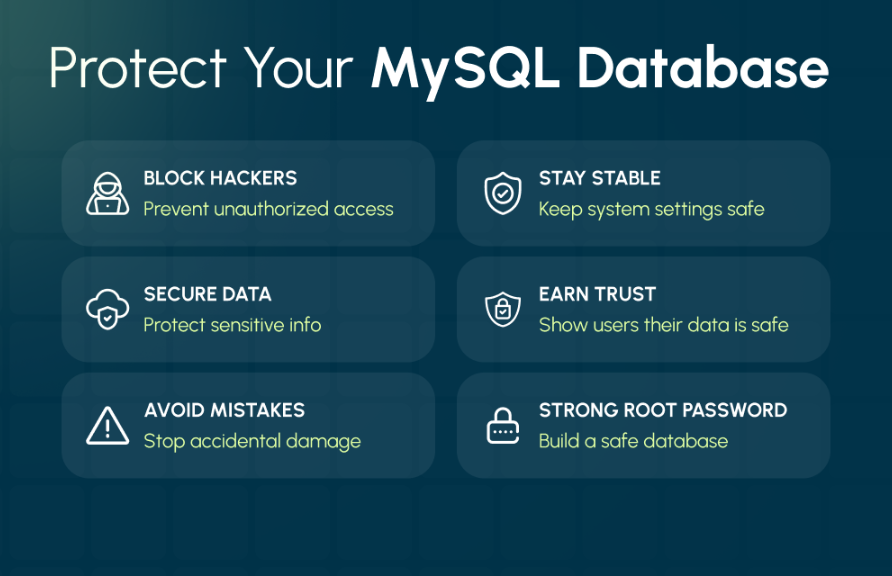
Prevents Unauthorised Access
Without a strong password, hackers or even random users can log in as root. Once inside, they can see or change everything. A secure root password blocks unwanted access right at the door.
Protects Sensitive Data
Databases often store usernames, emails, or even financial records. If this data is exposed, it can cause big problems. A protected root password makes sure only trusted users can view or edit it.
Stops Accidental Damage
Sometimes mistakes happen. If too many people can log in as root, someone may delete or edit the wrong data by accident. Protecting the root account reduces this risk.
Maintains System Stability
The root user can also control how the server runs. If an untrusted person changes settings, the whole database may stop working. A strong root password helps keep the system stable and reliable in this case.
Builds User Trust
If you are running a website or app, people trust you with their data. By securing your MySQL root account, you show that their information is safe, which builds confidence and trust in your service.
Before You Start: Versions, Plugins, and Safety
Before changing the MySQL root password, it’s good to know how MySQL versions work and what has changed in recent releases. MySQL 8 and newer versions use a different way to handle passwords than older versions. Also, there are some safety tips you should always follow.
MySQL 8 Uses caching_sha2_password
In MySQL 8 and later, the default authentication plugin is caching_sha2_password. This is a safer and more modern method of handling passwords. You will see it often when setting a new root password.
Old Guides May Be Outdated
Some older tutorials still show the UPDATE mysql.user SET … method or recommend mysql_native_password. This approach is now outdated and may not work with the latest versions. Stick with current methods from the MySQL Developer Zone.
Avoid Showing Passwords in Shell
Never paste your root password directly into a command line where it stays in history. Instead, use the mysqladmin tool or the MySQL prompt. This way, the password is typed only when needed.
Know About Deprecated mysql_native_password
In earlier versions, mysql_native_password was the common plugin. Today, it is considered less secure and should only be used when you must support very old systems. For most users, it is best to avoid it.
When redesigning or upgrading your website, database security is often overlooked. Our Website Redesign service ensures your site runs on the latest frameworks with optimized database setups.
Method 1: Set or Change the Root Password (You Can Log In)
This method works when MySQL is running, and you can open the MySQL prompt. Use it on Windows 10 (Command Prompt or PowerShell) and macOS (Terminal). It also fits XAMPP and Docker with small tweaks noted below.
Using ALTER USER (recommended)
This is the clean way to do a MySQL change root password at the command line.
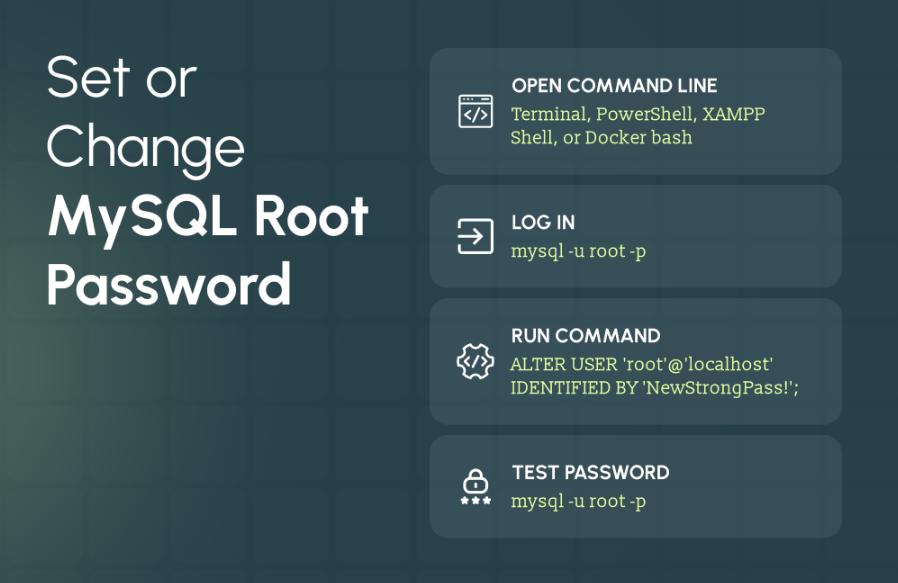
1. Open your command line.
- Windows 10: Command Prompt or PowerShell
- macOS: Terminal
- XAMPP: click Shell in the XAMPP Control Panel
- Docker: docker exec -it <container> bash
2. Log in to the MySQL prompt:
mysql -u root -p
Type your current password when asked. If it is empty, just press Enter.
3. At the mysql> prompt, run:
ALTER USER ‘root’@’localhost’ IDENTIFIED BY ‘NewStrongPass!’;
4. Test the new password:
mysql -u root -p
Notes: Do not paste passwords where others can see your screen. Use the prompt so the password is not stored in the shell history. See the official MySQL Developer Zone for details.
Using mysqladmin
Good for quick setup of the MySQL set admin password.
- First-time set (no old password):
mysqladmin -u root password “NewStrongPass!”
- Change when you know the current password (safer, uses a prompt):
mysqladmin -u root -p password “NewStrongPass!”
You will be asked for the current password. Then it sets the new one.
Tips: -p has no space after it. Avoid typing passwords in full commands like – -password=…. Let the tool prompt you. Works the same on Windows and macOS, and also in XAMPP once MySQL is started.
GUI option – MySQL Workbench
You can set the password for root MySQL using clicks:
Server → Users and Privileges → root → Login tab → Set Password → Apply.
Make sure your Workbench version supports your auth plugin. MySQL 8.0 uses caching_sha2_password. Very old tools that expect mysql_native_password may fail to update Workbench. (MySQL Workbench is different from “SQL Workbench/J /J”; we mean MySQL Workbench here.) On Docker, connect via forwarded port or open a shell and run the steps above.
Method 2: Reset the Root Password (Forgotten Password)
If you forget your MySQL root password, you can still reset it safely using an init-file method. This approach works on Windows, macOS, Linux, and even Docker containers. It avoids exposing the password in shell history and keeps your database secure.
Tip: Replace /path/to/mysql-init.txt with the actual path to your file.
Safer Reset (Init-File Method)
Create a text file containing this line (replace NewStrongPass! with your new password):
ALTER USER ‘root’@’localhost’ IDENTIFIED BY ‘NewStrongPass!’;
Windows Steps
1. Stop the MySQL server if it is running using Services MMC.
2. Save the file as C:\mysql-init.txt.
3. Start the server with:
mysqld –init-file=C:\\mysql-init.txt
4. Log in with the new password, then delete the init file.
5. Restart MySQL normally.
macOS / Linux Steps
1. Stop the mysqld server
2. Save the file as /tmp/mysql-init.txt.
3. Start the server:
mysqld –init-file=/tmp/mysql-init.txt &
4. Log in to verify, then delete the init file and restart MySQL normally.
Notes: This method is recommended if you forgot the MySQL root password. It works on Windows servers, macOS, Linux, and even Docker setups. Check the MySQL Developer Zone for full guidance and safety tips.
First-Time Hardening (mysql_secure_installation)
When you install MySQL for the first time, it’s important to make your server secure. The mysql_secure_installation script helps with this by guiding you through essential steps. It is not meant for resetting a forgotten password; it’s for fresh installations only.
What the Script Does
The script does a few key things to harden your MySQL server:
- Set the root password: Prompts you to create a strong password for the main admin account.
- Remove remote root access: Stops root from logging in from other computers, which improves security.
- Delete anonymous users: Prevents anyone from connecting without a username.
- Remove test databases: Test databases are often used for experiments and can be a security risk if left on a production server.
- Reload privilege tables: Makes sure all changes take effect immediately.
When to Run It
Run mysql_secure_installation right after installing MySQL on Windows, macOS, Ubuntu, or Docker. It ensures your server is safe from the start. Do not use it to reset an existing password; for that, follow the steps in Method 2 or Method 1.
Following this process is a simple but effective way to protect your MySQL installation and prevent unauthorized access. The MySQL Developer Zone provides official guidance and detailed explanations for each step.
Platform Notes & Stacks (Quick References)
When working with MySQL, small differences exist depending on your platform or stack. Knowing these can save time and prevent errors, especially for beginners.
XAMPP and WampServer
The commands for setting or changing the root password for XAMPP and WampServer are the same as standard MySQL. The main difference is paths; use the MySQL bin folder inside your XAMPP or WampServer installation. For example, on Windows, it might be C:\xampp\mysql\bin\mysql.exe. This ensures the right executable runs.
Debian / Ubuntu
If you are using Debian or Ubuntu, make sure not to delete the debian-sys-maint user. This account is used by system init scripts to manage MySQL automatically. If you change its password, update /etc/mysql/debian.cnf to match; otherwise, system scripts may fail.
MariaDB
Most MySQL commands for root password management also work with MariaDB. However, some distributions use different defaults, such as socket authentication for the root user. Make sure to check the MariaDB documentation to confirm how authentication works on your setup.
Notes: These platform notes apply to beginners setting up MySQL on XAMPP, WampServer, Debian/Ubuntu, or MariaDB. Following these tips avoids common pitfalls and ensures smooth administration. For full guidance, see wiki.debian.org and MariaDB official docs.
Troubleshooting Common MySQL Root Password Issues
Even with proper steps, beginners may run into errors. Here’s how to handle the most frequent problems effectively.
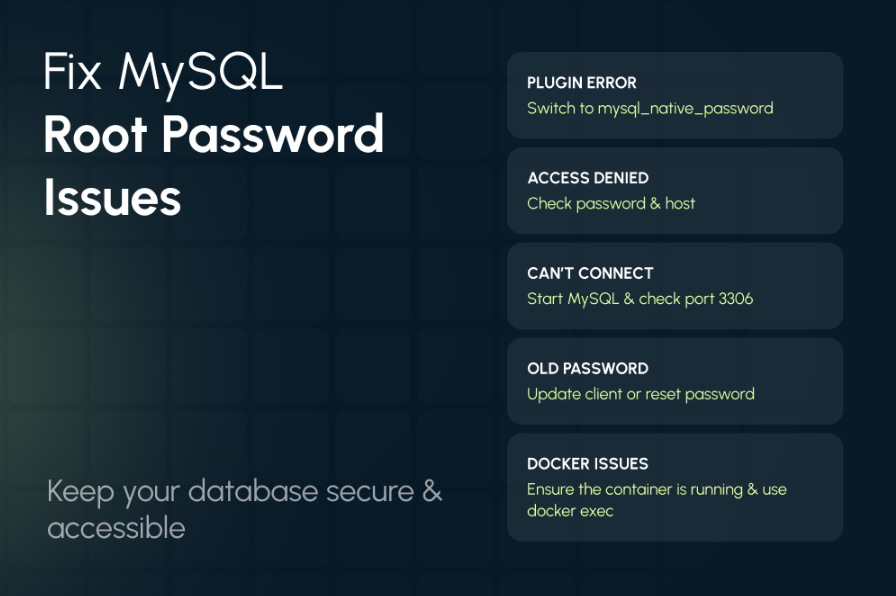
Fix “Authentication Plugin Not Supported”
If your client doesn’t support caching_sha2_password, update it or switch the root user temporarily to mysql_native_password for compatibility.
Resolve “Access Denied for ‘root’@‘localhost’”
Double-check your password, authentication plugin, and host. If needed, follow the reset steps using an init file or ALTER USER.
Solve “Can’t Connect to MySQL Server”
Ensure the MySQL service is running. On Windows, check Services; on macOS/Linux, check mysqld. Also, verify port 3306 is open.
Handle “Old Password Format Not Supported”
Some older clients cannot use the new password hashing. Update your client or reset the password using mysql_native_password temporarily.
Docker Connection Problems
In Docker, confirm the container is running and connect using the mapped port. You can use docker exec -it <container> bash to access MySQL directly if external login fails.
For businesses, a broken database often means downtime and lost sales. That’s why our Website Maintenance and Digital Strategy Consulting services help prevent such issues before they impact your users.”
Notes: Following these tips will solve most beginner-level issues. Sources include Stack Overflow and the MySQL Developer Zone.
End Note
Securing your MySQL root password is one of the most important steps to protect your database. Whether you are setting it for the first time, changing it, or resetting a forgotten password, following the correct method keeps your data safe and your server stable.
Using tools like ALTER USER, mysqladmin, or mysql_secure_installation makes the process easy on Windows, macOS, Ubuntu, XAMPP, or Docker. Always follow best practices, avoid exposing passwords, and check your platform-specific requirements to ensure a secure and smooth MySQL setup.