Ever opened your project only to see “SyntaxError: Cannot use import statement outside a module” and felt stuck? This error occurs when your JavaScript code uses ES Modules (ESM), but the system expects CommonJS (CJS), or vice versa. It’s a mismatch between how the code is written and how it’s read.
ES Modules and CommonJS are two ways to organize and share JavaScript code. Node.js mainly uses CommonJS, while modern browsers and new Node.js versions support ES Modules. Knowing the difference helps avoid import and export errors.
In this guide, we’ll cover simple fixes for Node.js, Jest, React/Next.js, and browser modules. You’ll learn practical steps to resolve the error and get your code running smoothly.
If this keeps tripping your builds, our Website Design & Development team can standardize your project’s module system so ES Modules and CommonJS work as intended.
What Does ‘‘SyntaxError: Cannot Use Import Statement Outside a Module” Mean?
This error means your code is mixing two different JavaScript module systems. Node.js and older browsers default to CommonJS or classic scripts, while import/export belong to the newer ECMAScript Modules (ESM) standard.
Fix it by opting into ESM: in Node, set “type”:”module” or rename to .mjs; in browsers, use <script type=”module”>; in Jest, enable its ESM config. Then run the file again.
Why this matters: Node decides module type via file extension and package.json’s “type” field; browsers need <script type=”module”>.
To prevent config drift and repeat errors over time, ongoing Website Maintenance keeps environments, package versions, and build scripts in sync.
Common Causes of “Cannot Use Import Statement Outside a Module.”
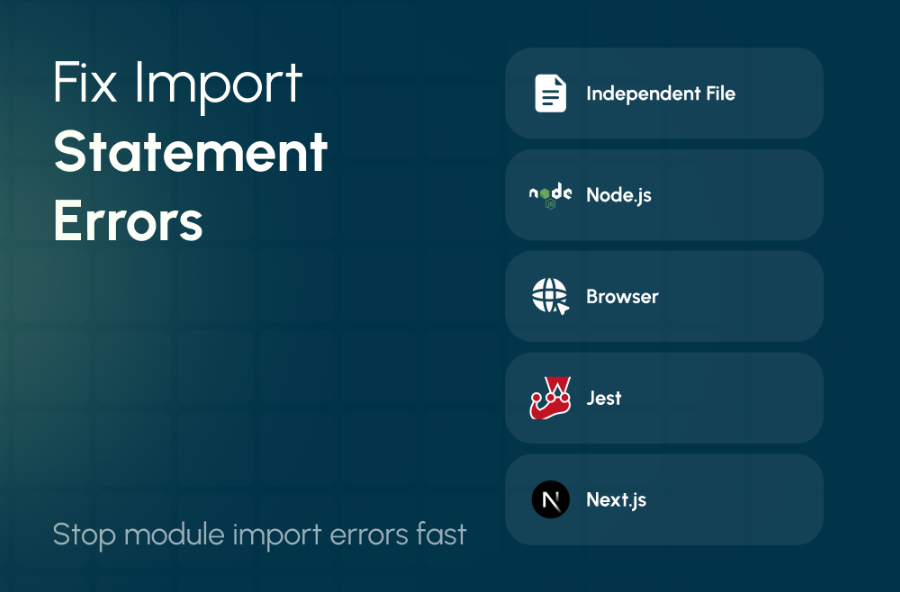
Many developers encounter this issue when JavaScript code fails to match the environment. Common causes include trying to run the file independently, Node.js treating .js as CommonJS, or using classic browser scripts.
Here are some quick points to understand the problem:
- Environment mismatch: The file might be run where ES Modules aren’t supported.
- Node.js module type: Node defaults .js to CommonJS unless told otherwise.
- Browser scripts: Classic <script> tags don’t recognize ES Modules.
- Testing setups: Jest may run ESM tests as CJS if not configured.
Framework requirements: Next.js requires proper ESM imports for certain packages.
| Cause | Quick Fix |
|---|---|
| Trying to run the file independently | Run in the correct environment or wrap it as a module. |
| Node treats .js as CommonJS | Set “type”: “module” in package.json or use .mjs; .cjs forces CJS. |
| Browser classic script | Use <script type=”module”> to load ES Modules. |
| Jest runs ESM tests as CJS | Update Jest config: extensionsToTreatAsEsm, –experimental-vm-modules, or use a transformer. |
| Next.js requires ESM import | Use import instead of require for ESM packages. |
By checking these causes and fixes, you can prevent most module import errors in Node, browsers, Jest, and Next.js.
If these issues recur because of the legacy structure, a scoped Website Redesign can modernize your module strategy and bundling.
Fix in Node.js / NPM (when importing ECMAScript 6)
When using Node.js, importing ES Modules can cause errors if the system expects CommonJS. Here are practical ways to fix it.
Option A -Use package.json “type”: “module” (recommended)
This tells Node that all .js files in the package are ES Modules. The setting also applies to subfolders, so files inside nested folders follow the same rules.
Steps:
npm init -y
Then, open package.json and add:
{
“name”: “my-app”,
“version”: “1.0.0”,
“type”: “module”
}
Now you can run ES Module files normally:
node app.js
Notes:
- .cjs always forces CommonJS.
- .mjs always forces ES Module behavior, even if “type”: “module” is not set.
- Node v12.0.0 introduced the “type” field (unflagged in v12.17.0 / 13.2.0).
Option B – Use .mjs / .cjs extensions
If you can’t change “type” for the whole package, rename your files:
- app.mjs for ES Modules (use import)
- legacy.cjs for CommonJS (use require)
Example:
// app.mjs
import { myFunc } from ‘./module.mjs’;
myFunc();
// legacy.cjs
const { myFunc } = require(‘./module.cjs’);
myFunc();
Option C – Use dynamic import()
Dynamic import() works inside CommonJS files when you need to load an ES Module. Example:
// legacy.cjs
(async () => {
const module = await import(‘./app.mjs’);
module.myFunc();
})();
This allows mixing CJS and ESM safely in Node.js.
Authoritative note: Node’s docs confirm that .mjs is always an ES Module and .cjs is always a CommonJS. Using “type”: “module” makes .js files ESM in that package.
Fix in the Browser (classic script vs. modules)
When running JavaScript in the browser, a common source of import errors is using classic <script> tags instead of ES Modules. Browsers need a signal to treat your files as modules.
Use <script type=”module”>
Adding type=”module” tells the browser that the script uses ES Modules. Modules automatically run in strict mode, which helps prevent some common mistakes. However, importing modules over file:// may fail due to CORS restrictions, so always serve files over http:// or a local server during development.
Minimal example:
<!DOCTYPE html>
<html>
<head>
<meta charset=”UTF-8″>
<title>ES Module Example</title>
<script type=”module”>
import { sayHello } from ‘./module.js’;
sayHello();
</script>
</head>
<body>
<h1>Check the console</h1>
</body>
</html>
Notes:
- Classic scripts (<script>) do not support import or export.
- Modules can use import maps to simplify paths (optional).
- Always serve modules over HTTP during development to avoid browser security issues.
Fix in Jest (tests fail with the same SyntaxError)
If you see “cannot use import statement outside a module” or “SyntaxError: cannot use import statement outside a module” while running Jest tests, it usually means Jest is trying to run ES Modules (ESM) as CommonJS. Jest’s ESM support is still experimental, so you need some extra setup.

Minimal ESM setup
1. Add “type”: “module” to your package.json:
{
“name”: “my-app”,
“version”: “1.0.0”,
“type”: “module”
}
2. Update Jest config (jest.config.js or jest.config.ts) to treat extensions as ESM:
export default {
extensionsToTreatAsEsm: [‘.ts’, ‘.tsx’],
transform: {} // disable transforms unless intentionally using one
};
3. Run Jest with experimental flag (optional but sometimes needed):
node –experimental-vm-modules node_modules/jest/bin/jest.js
4. TypeScript support:
-
- Either transpile to CommonJS just for tests, or
- Use @swc/jest or babel-jest to handle ESM imports:
// jest.config.js
export default {
transform: {
‘^.+\\.(t|j)sx?$’: [‘@swc/jest’]
},
extensionsToTreatAsEsm: [‘.ts’, ‘.tsx’]
};
Notes:
- Experimental ESM means Jest is still testing ESM support.
- You might need extensionsToTreatAsEsm and the –experimental-vm-modules flag in some setups.
- Using this setup prevents the cannot use import statement outside a module error when testing ES Modules.
Authority: Per the Jest docs, ESM support is experimental, so you may need extensionsToTreatAsEsm and the –experimental-vm-modules flag in some setups. jestjs.io
Fix in React & Next.js
When working with React or Next.js, you might run into “uncaught SyntaxError: cannot use import statement outside a module” or “JavaScript cannot use import statement outside a module.”
These errors happen when your JavaScript code is written as an ES Module (using import/export), but the environment is expecting CommonJS, or the bundler doesn’t handle ESM in certain scripts.
React (Create React App / Vite / general React)
React projects use ES Modules (ESM) internally, so normal component imports and exports usually work without problems. The error usually appears in:
- Node scripts for tooling or server code
- Tests running outside the React bundler
- Any extra JavaScript files not processed by the bundler
Fixes:
- Ensure Node scripts use ESM by adding “type”:”module” in package.json or renaming the scripts to .mjs.
- Keep all React component imports/exports using the standard import syntax.
- Avoid mixing require in code meant for the React frontend.
Next.js
Next.js often requires stricter ESM handling because some dependencies are ESM-only. If you try to load these using require, you’ll see “uncaught SyntaxError: cannot use import statement outside a module.”
Fixes:
- Always use import instead of require for ESM packages.
- If you need to load modules dynamically, use dynamic import() for runtime imports.
- Keep next.config.js as CommonJS unless your Next.js version supports ESM configuration.
Tips:
- Understanding the difference between require and import helps you avoid errors when using modern JavaScript packages.
- This setup prevents the common JavaScript cannot use import statement outside a module error in React or Next.js projects.
Short Note – React Native / Metro
When working with React Native, the bundler Metro handles ES Modules (ESM) and CommonJS (CJS) differently from Node or browser environments. Most React Native projects do not set “type”: “module” at the app root, so by default, .js files are treated as CommonJS.
If you try to use import in a file that Metro interprets as CJS, you may see the dreaded “JS SyntaxError: cannot use import statement outside a module”.
Fixes and tips:
- If you enable ESM broadly, some tooling or config files may break.
- Rename config files to .cjs to force CommonJS, or use dynamic import() to load ES Modules at runtime.
- Keep regular app code as .js unless you specifically need ESM.
Reference: React Native / Expo Documentation – Metro
This approach ensures that your React Native project avoids the JS SyntaxError: cannot use import statement outside a module while still allowing modern ES Module usage where necessary.
End Note
Dealing with “cannot use import statement outside a module” or JS SyntaxError can be confusing, especially for beginners. The issue usually comes from mismatched module systems, ES Modules versus CommonJS, in Node.js, browsers, Jest, or frameworks like React and Next.js.
By understanding how each environment handles modules and following simple fixes, setting “type”: “module”, using .mjs/.cjs extensions, <script type=”module”>, or dynamic imports, you can resolve these errors quickly. With the right setup, your code will run smoothly across all platforms.