Many healthcare providers struggle when they have more than one office. If a practitioner works at two locations, listing both correctly on the Google Business Profile is crucial. A wrong setup can confuse patients and reduce online visibility.
Managing multiple locations means careful attention to each business listing, service areas, and NAP consistency. Small mistakes, such as duplicates or mismatched addresses, can hurt search results and patient trust.
This guide shows doctors and medical professionals step by step how to list, manage, and protect all locations without errors. Keep reading to learn how.
Can a Practitioner List More Than One Location on Google?
Yes, a practitioner can list more than one location on Google. Google allows each business listing to represent a real office where patients can visit. Following Google’s rules keeps your listings visible, and sometimes in the top 3 of the map pack.
For a solo practitioner, each office needs its own listing with the correct name, address, and phone number. In a group practice, multiple practitioners can share a location, but each professional can still have a separate listing if they see patients at various offices.
Doctors with rotating shifts or visiting several clinics can create listings for each location. This makes it easier for patients to find the right office and schedule appointments.
Add a Second Location to Your Google Business Profile
Managing multiple offices can be simple when you follow the right steps. You can add a second location to Google My Business to avoid mistakes and keep both listings visible for multiple locations.
Step 1: Access Your Google Business Account

Go to business.google.com/locations and log in using the Google account that manages your primary office. Only a verified owner can add another location, which ensures the new listing remains under your control.
Step 2: Click “Add Location”
Once logged in, click “Add single location” to create one office. For listing multiple businesses at one address, use the bulk upload option. Enter your practice name precisely as it appears on the first listing to maintain consistency.
Step 3: Enter Address and Phone
Provide the full address of your second office carefully. Add the correct phone number for this location so patients can contact the right office directly. Accurate details prevent confusion and ensure NAP consistency.
Step 4: Set Service Area
If your practice offers home visits or covers a region, define the service area for this location. This approach helps Google show your listing when patients search for services within that area, improving visibility.
Step 5: Verify the New Listing
Google usually sends a postcard or a call to confirm the office address. Completing verification keeps your listing active and trusted. Both listings must remain verified to avoid visibility issues.
Step 6: Check for Errors
After adding the second location, review all details. Ensure office hours, services, and contact information are accurate. Avoid duplicate listings, which can confuse patients and reduce your Google Maps rankings.
How to Manage Practitioners Who Work Under One Location
Many clinics have several doctors in one office. Each provider may have a different role, schedule, or patient type. Google allows a clear structure so that every practitioner is easy to find online.
When a Practitioner Should Have a Separate Listing
A practitioner may use a separate listing when they offer care at that location and meet patients in person. This setup supports patients who search for a specific doctor by name. It also helps the clinic avoid mix-ups when several providers work in the same building.
You can create a separate listing if:
- The practitioner sees patients at that office.
- The provider uses a real room inside the clinic.
- The practitioner handles their own appointments.
- The provider’s name is often searched for by patients.
This approach helps each doctor achieve full visibility for the clinic on Google Maps.
How Google Uses “Practitioner at This Location”
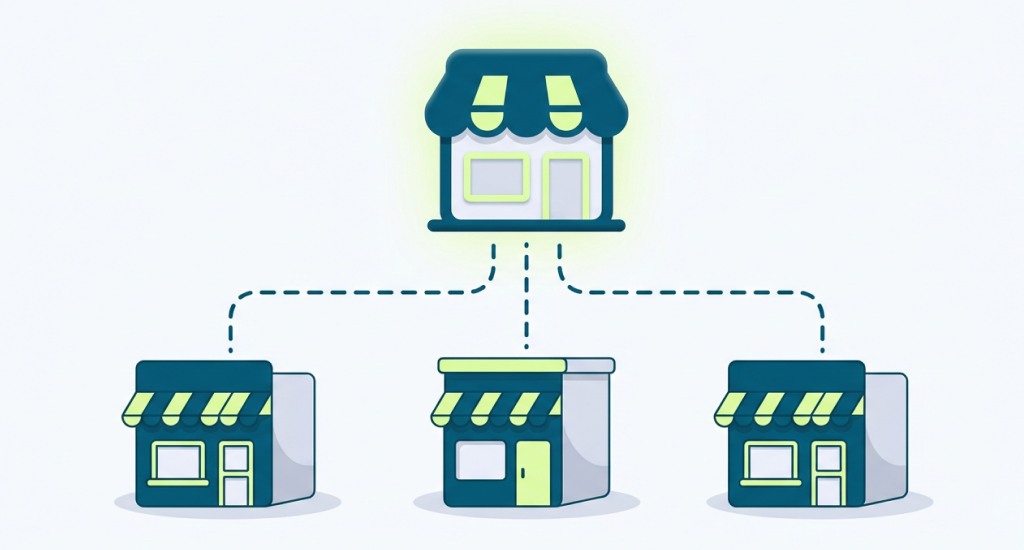
Google places the leading clinic as the top listing, then connects each practitioner under it. This creates a simple structure. Patients first see the clinic, then the list of doctors linked to that same address. It works well for clinics with many specialists.
This setup helps Google understand:
- Which providers work in the same building?
- The role of each practitioner.
- How the clinic connects to each doctor.
- Which listing belongs to the primary office?
Patients often trust this format because it looks transparent and well-managed.
Examples From Common Group Practices
Dental centers often use this format. The primary dental office appears first, and each dentist shows up under it.
This helps new patients pick the right dentist for their needs. Therapy clinics also use this model because each therapist may handle different cases or age groups, even though they share the same address.
This structure works well for:
- Dental groups
- Pediatric centers
- Therapy clinics
- Eye care centers
- Multi-specialty health offices
It keeps every provider visible and easy to reach.
Picking the Right Category for Each Practitioner
Each practitioner must choose the correct category that matches their work. A dentist, pediatrician, orthopedist, or mental health therapist must select the most accurate category. This helps Google understand the provider’s exact role and show them in suitable searches.
A correct category also helps:
- Patients find the right specialist.
- Google avoids mixing one doctor’s work with another’s.
- The clinic maintains accurate search results.
- Each provider builds trust through a clear identity.
When categories stay accurate, both the leading clinic and each practitioner gain stronger online visibility.
Tips to Optimize Each Location for Maximum Visibility
Every office serves a different area, so each Google profile must stand on its own. Clear updates help patients choose the right spot. Here, you’ll see easy ways to make every location strong in local search.
Add Unique Photos for Each Location
Photos help patients understand what each office looks like. Use authentic images of the waiting area, entrance, rooms, and parking. Clear photos also make your profile appear more active and trustworthy.
Avoid using the same pictures for all locations. Unique images help Google understand that these offices are different places. This supports GBP optimization and helps each listing stand on its own.
List Services Based on Each Office
Each branch may offer different treatments. Add the correct services to each location so patients know what they can expect. Precise service details enhance profile value and improve search visibility.
Unique service lists help Google match your location to the right search results. This can raise your profile ranking when people look for health services in that area.
Set Accurate Hours for Every Location
Some offices stay open longer than others. Add correct hours for each branch to avoid patient confusion. Accurate hours also help your listing appear in searches for “open now.”
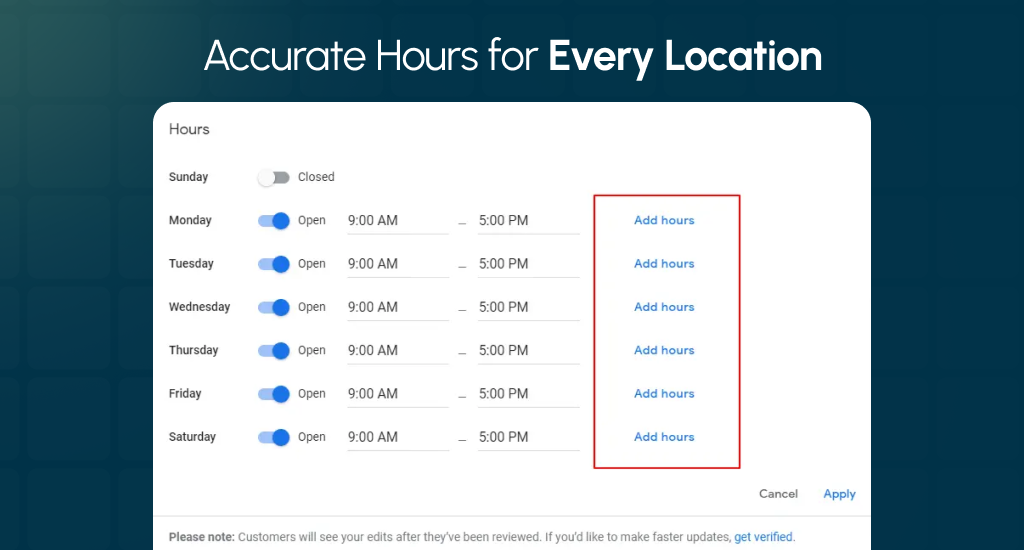
Google rewards profiles that stay updated. When each location shows correct hours, your listings stay more active and carry stronger signals for local SEO performance.
Add Local Keywords in Your Description
Every location can use a simple description that mentions the neighborhood or city name. This helps Google understand where your office serves and boosts local visibility.
Use clear terms like “family clinic in Midtown” or “therapy office near Lake Road.” These small details guide Google to show your branch for nearby searches.
Build Location-Specific Citations
Citations are online mentions of your clinic with name, address, and phone. Google My Business multiple locations need their own set. Strong citations help Google trust your information more.
Add each address to local directories, maps, and health sites. When each office has accurate citations, your locations gain stronger authority in local results.
Keep Each Profile Updated
Update hours, services, photos, and contact details whenever something changes. Fresh profiles show Google that your clinic is active and reliable. Small updates help your profile appear more often. This also prevents wrong details from hurting your visibility or confusing patients.
Use Posts for Each Location
Share short updates, offers, or health tips through Google Posts. Each branch can post its own message based on local needs or events. Posts help keep your listing active. Google often rewards active locations with higher rankings in local search results.
How to Avoid Common Mistakes with Multiple GBP Locations
Managing more than one Google Business Profile location can seem simple at first, but a few minor errors can quickly hurt visibility. Each office needs precise details. Every profile must follow Google’s rules.
When these parts remain correct, patients find the proper location without confusion. Below are the most common mistakes clinics face and the simple ways to avoid them.
Duplicate Listings
Duplicate listings appear when one office has two or more profiles with the same address. Google sees this as a problem and may hide them.
Always check your Locations dashboard before you create a new profile. Remove or merge repeats through the dashboard to protect your visibility.
Unverified Second Location
A second office stays weak until it passes Google’s verification step. An unverified location may not show on Google Maps or may lose trust signals. Make sure each new office completes the postcard or phone verification.
Keep the profile active until Google approves it. Verified locations receive stronger placement and fewer issues.
NAP Mismatch
NAP stands for name, address, and phone number. These details must stay the same everywhere on the internet. A mismatch confuses Google and drops the location’s trust level.
Check the clinic name, local number, and full address for each office. Update directories, your website, and your GBP profiles to keep everything aligned.
Inaccurate Categories
Categories help Google understand the exact service you offer. Wrong categories can place your office in unrelated searches or reduce your reach.
Choose the main category that matches the work done at that exact branch. A dental office, therapy center, or pediatric clinic must select the correct one. Accurate categories help Google place each location in the right results.
End Note
Managing multiple practice locations on Google Business Profile may seem tricky at first, but careful setup prevents errors and keeps each office easy to find. Correct details, verification, and unique profiles help patients reach the right practitioner fast. Following these tips ensures every location ranks well in local searches. Proper management also builds trust, strengthens your clinic’s visibility, and improves patient experience.