A blank web page looks dull, but a good background can change everything. In web design, the background is not just decoration; it helps users focus, improves readability, and adds style. This is why learning about the background in CSS is so important.
Three main CSS properties help you control this area: background, background-color, and background-image. Each of these properties has a different role. You can fill a space with a solid color, set an image, or use the shorthand property to handle multiple values at once.
This blog will show you the major differences, real use cases, and simple tips to use each background property effectively.
Key Takeaways
- background-color = sets a solid color, works as a fallback for images.
- background-image = adds decorative images or gradients behind content.
- background = shorthand for all background properties; resets omitted values.
- Property choice = depends on design goals, complexity, and accessibility needs.
- Use examples = visuals help explain proper usage clearly to beginners.
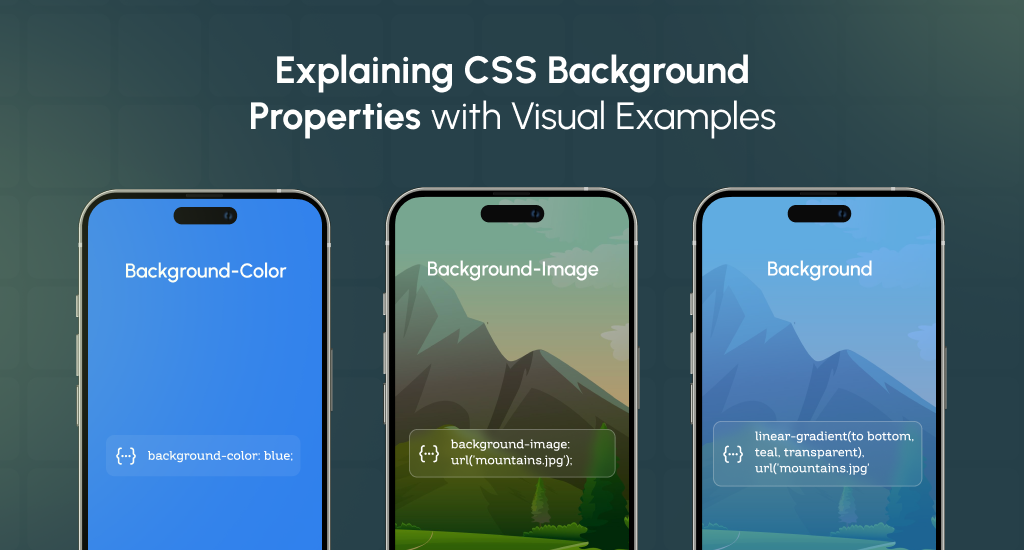
What is a Background in CSS?
In CSS, a background is what you see behind the main content of a page. It is like the canvas of a painting; it sets the tone before any other details appear. Without a background, a page often looks flat and unfinished.
A background can be simple, like a single color, or more creative, like a photo, gradient, or repeating pattern. CSS also lets you add more than one background at the same time, layering them to build interesting effects.
Not every background has the same purpose. Some are decorative, like a soft gradient or texture that makes the page pleasant to look at. Others can be more functional, like a colored table cell that highlights data for the reader.
So, the background in CSS is much more than “filling space.” It gives personality to a page, supports the design, and guides how people see the content.
Background-Color in CSS: Solid Color Behind Elements
Background-color sets a solid color behind HTML items. It also works as a backup if the image you planned doesn’t show. Let’s learn about the facts associated with it:
Definition & Purpose
This property gives an element like a paragraph, a table cell, or a div a single solid color. That color stays behind the text or other content. If your image cannot load, the color you set with background-color shows instead.
Syntax & Usage
You write it like this:
background-color: blue;
background-color: #FF0000;
background-color: rgb(255,0,0);
background-color: hsl(0, 100%, 50%);
You can use named colors (like “blue”), hex codes (#FF0000), RGB/RGBA, or HSL/HSLA values. RGBA and HSLA let you pick transparency too.
Behavior
The solid color sits behind everything else. If you have a background image, the color shows under the image. Also, changing background-color does not change or affect other background properties like background-image, background-position, or background-repeat.
When to Use
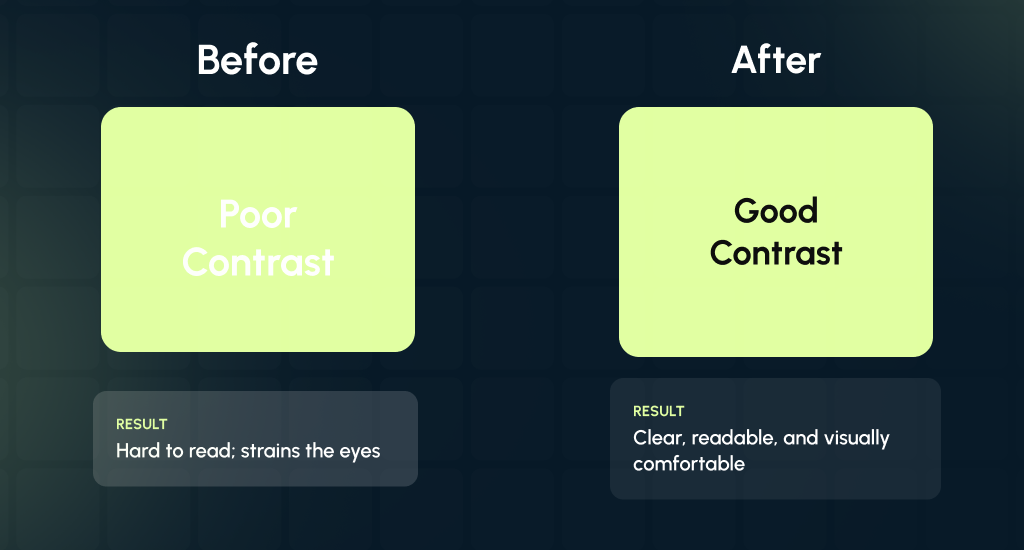
You can use a simple solid color when you want a minimal style or good readability. Use a fallback color behind images in case they fail or load slowly. Also, a strong contrast between color and text helps people read more easily.
Additional Note: Accessibility & Contrast
Good contrast matters. Monday Digital’s study found on BOIA that more than 86% of websites fail basic color contrast checks. That means on most sites, the text and background do not differ enough. So, many people, especially those with vision issues, find reading hard.
Also, our studies found that AEL data claimed that around 83% of websites have contrast problems. Also, that makes the text hard to see.
Background-Image in CSS: Using Pictures, Patterns, and Gradients Behind Elements

In CSS, background-image sets pictures, gradients, or patterns behind an element. It makes a web page look more attractive and engaging. While a background color is plain and solid, background-image lets you add visuals that can match your brand or design style.
Definition & Purpose
Background-image lets you set a picture, gradient (smooth color change), or pattern behind content. It plays a decorative role. If you use a gradient or image, the background-color will only show if that image or gradient fails.
Syntax & Usage
You can write it this way:
background-image: url(“image.jpg”);
background-image: linear-gradient(to right, red, yellow);
background-size: cover;
background-repeat: no-repeat;
background-position: center;
You may also combine many layers:
background-image: url(“image1.png”), linear-gradient(to bottom, #fff, #000);
It helps create effects like adding a color overlay on top of an image. We found out PNG is the most common image format used in web design. It appears on 82.1% of websites, followed by JPEG at 77.9%, according to Scanse’s report.
Behavior
By default, images start in the top-left corner and repeat until the element is filled. You can change this with background-size, position, and repeat rules.
Many designers also set a solid background color underneath, so if the image fails to load, users still see something readable. Images are heavy on the web. According to Pingdom’s data, they account for about 61.3% of a typical webpage’s total size.
When to Use
You can use background-image when you want visual flair: hero sections, patterns, photo banners, or gradient overlays. For example, a hero section at the top of the page often uses an image. You should use layering when you want a gradient over an image or multiple images.
So, when using background-image, pick formats that load fast and look good on many devices. Also, you should test how the page performs if image sizes are large.
Background (Shorthand): Combining All Background Properties in One Line
The background shorthand property in CSS lets you set multiple background-related properties in a single line. This approach simplifies your code and makes it more efficient. Instead of writing each background property separately, you can combine them. It will save time and reduce redundancy.
Definition & Purpose
The background shorthand property combines several background properties into one declaration. This includes the following:
- background-color
- background-image
- background-repeat
- background-position
- background-size
- background-attachment
- background-origin
- background-clip
With this shorthand, you set all properties in one line, which keeps your CSS concise and easy to manage.
Syntax & Usage
The general syntax for the background shorthand property is:
background: [background-color] [background-image] [background-repeat] [background-position] [background-size] [background-attachment] [background-origin] [background-clip];
For example:
background: red url(“image.png”) no-repeat center/cover fixed;
In this example:
- red sets the background color.
- url(“image.png”) sets the background image.
- no-repeat prevents the image from repeating.
- center/cover positions the image at the center and scales it to cover the area.
- fixed keeps the background image fixed during scrolling.
This shorthand notation is particularly useful when you want to apply multiple background properties at once, streamlining your CSS code.
Key notes to consider:
- Omitted Properties: If you omit a property in the shorthand declaration, it resets to its default value. For instance, if you don’t specify background-repeat, it defaults to repeat.
- Overriding Individual Properties: If you apply individual background properties after using the shorthand, they will override the corresponding values set by the shorthand.
- Multiple Backgrounds: You can specify multiple backgrounds by separating them with commas. For example:
background: url(“image1.png”), url(“image2.png”);
It sets two background images.
- Gradients: You can also use gradients as background images. For example:
background: linear-gradient(to right, red, yellow);
It creates a gradient background transitioning from red to yellow.
When to Use
The background shorthand property is ideal when you need to apply multiple background-related properties to an element. It simplifies your CSS and makes your code more readable.
However, you should be cautious when using it, as omitting a property will reset it to its default value. Always ensure that you specify all the necessary properties to avoid unintended resets.
Extra Tip: Order Matters
When using the background shorthand property, the order of the values matters. If you specify background-size and background-position together, you must separate them with a slash (/).
For example:
background: url(“image.png”) center/cover;
In this case, the center is the position, and the cover is the size. Using the slash separates these two values correctly.
Key Differences Between Background, Background Color, & Background Image in CSS
Understanding the distinctions between background, background-color, and background-image is essential for effective web design. Here’s a concise comparison table given below:
| Property | Sets | Purpose / Scope | Notes |
|---|---|---|---|
background-color |
Only color | Solid fill behind content/images | Acts as a fallback if an image fails to load. |
background-image |
Only image/gradient | Decorative background | Positioned & repeated by default. |
background |
Color + image + position + repeat + size | Shorthand for all background properties | Resets unspecified properties. |
Shorthand vs. Longhand
The background shorthand property lets you set multiple background-related properties in one line, making your CSS more concise.
For example:
background: red url(“image.png”) no-repeat center/cover fixed;
It sets the background color to red, applies an image, prevents repetition, centers the image, covers the area, and fixes the image during scrolling. On the other hand, using longhand properties requires multiple lines:
background-color: red;
background-image: url(“image.png”);
background-repeat: no-repeat;
background-position: center;
background-size: cover;
background-attachment: fixed;
Shorthand reduces code and keeps it clean and easy to maintain. But if you leave out a property, CSS resets it to its default value. For instance, if you don’t specify background-repeat, it defaults to repeat.
Reset Behavior
When you use the background shorthand property, any omitted property resets to its default value. For example, if you don’t include background-repeat, it will default to repeat. It can unintentionally override other background settings.
Therefore, it’s important to specify all desired properties when using the shorthand to avoid unexpected results.
Individual vs. Combined Control
Using individual properties like background-color and background-image gives you fine-grained control over each aspect of the background. This approach is useful when you want to customize specific properties without affecting others.
On the other hand, the background shorthand property is convenient for setting multiple properties at once but requires careful attention to ensure all desired properties are included.
Practical Tips & Best Practices for Using Backgrounds in CSS
Using backgrounds in CSS can make your website look stylish and professional. But if not used carefully, they can create problems with readability, load times, or layout. Simple tips and best practices keep your designs clear, attractive, and user-friendly.
Always Include a Fallback Background-Color
Even when using images or gradients, you should set a solid background color first. It ensures that if an image fails to load or a browser doesn’t support certain features, users still see something clean and readable.
Use Background Shorthand Carefully
Shorthand is powerful, but omitting a property can reset it to the default unexpectedly. You should always check that all important background properties are included, so your design looks exactly as planned.
Keep Content Images Separate
You should use <img> tags for images that are part of your content, like photos or product pictures. CSS backgrounds should remain decorative, like patterns, banners, or gradients. It improves accessibility and SEO.
Layer Backgrounds for Advanced Designs
You can stack multiple backgrounds to create complex visuals, like an image over a gradient. This technique helps designers build depth and style without extra HTML elements.
Include Gradients for Modern Design
Gradients can replace plain colors, making backgrounds look more dynamic. They are lightweight and supported in most modern browsers. Also, they can improve the aesthetics without slowing down your page.
Optimize for Performance
You should keep background images compressed and avoid very large files. Too many heavy images slow down pages and reduce load speed. Also, they can lower user engagement and hurt the overall experience.
Test Across Devices and Browsers
Check how backgrounds appear on mobile, tablet, and desktop screens. Also, you should verify in older browsers to ensure fallback colors display correctly. Additionally, you should see if they can keep your design consistent everywhere.
Design & Visual Considerations: Choosing Background Colors Wisely

Selecting the right background color is important in web design. It sets the tone, RTR enhances readability, and aligns with your brand’s identity. Here’s how different colors can influence your website’s appearance and user experience.
White: Clean and Professional
White backgrounds show clarity and order. They give a sense of space and let text or images stand out. Many companies use white to build trust and highlight key messages. In business, healthcare, and technology, white backgrounds create a clean and open look that feels honest and professional.
Black: Dramatic and Luxurious
Black backgrounds create a strong and bold impression. They add contrast and give colors or images more power. Many luxury brands use black to show class, elegance, and exclusivity.
Fashion, jewelry, and premium products often use black to present authority and confidence. A black background makes the design feel rich and timeless.
Grey: Neutral and Flexible
Grey backgrounds provide balance and stability. They stay in the middle of light and dark, so they do not take away attention from other elements.
Grey supports colors, text, and images without drawing focus. Many modern brands use grey to achieve a calm, balanced, and smart look. It fits both formal and casual styles and works across many designs.
Blue, Green, Yellow: Creative and Mood-Driven
- Blue: Represents trust and calmness, making it ideal for corporate and healthcare websites.
- Green: Symbolizes health and growth, often used in environmental or wellness sites.
- Yellow: Evokes happiness and energy but should be used sparingly to avoid overwhelming users.
Matching Background with Branding and Subject Matter
You should ensure your background color aligns with your brand’s message and the content’s purpose. Consistency in color schemes reinforces brand identity and improves user recognition.
Accessibility, Readability, and Dark Mode Compatibility
High contrast between text and background keeps content clear. Light text on dark or dark text on light improves visibility. Always think about readers with poor eyesight or color issues. You should test your design in both light and dark modes to keep it accessible for everyone.
Email Clients: Simple Backgrounds Preferred
Email clients do not always support complex backgrounds. Patterns or images may break across devices and look unprofessional. A solid background works better.
Strong contrast between text and background keeps the message clean and easy to read. Simple colors make your email clear and professional.
Examples & Use Cases of CSS Backgrounds
Using backgrounds in CSS can be simple or advanced, depending on your design needs. Here are some practical examples that show how different background techniques work in real web design.
Simple Colored Section
A solid background color is the easiest way to style a section. It improves readability and keeps the design clean. For example:
section {
background-color: #f0f0f0;
}
This light grey background works well for content blocks, cards, or sections where text needs to stand out clearly.
Hero Image with Fallback Color
For large banners or hero sections, you can combine an image with a background color. The color acts as a fallback if the image fails to load or is slow to appear:
header {
background-color: #000;
background-image: url(“hero.jpg”);
background-size: cover;
background-position: center;
background-repeat: no-repeat;
}
Here, the black color ensures the header still looks polished while the image loads, and the image covers the full space without repeating.
Multiple Layered Backgrounds
You can stack several backgrounds for advanced visual effects, like adding a semi-transparent overlay on a pattern:
div {
background: linear-gradient(rgba(0,0,0,0.5), rgba(0,0,0,0.5)), url(“pattern.png”) repeat;
}
The gradient overlay makes text readable on top of a busy pattern, while the pattern adds texture and depth.
Final Thought
Background, background-color, and background-image may look similar, but they each have their own place in web design. Try to know when to use a solid color, when to place an image, and when to apply the full background. It can keep your pages clear, balanced, and attractive.
A simple color can improve readability, while a smart image can bring life to the design. You should use these CSS background tools wisely, and your website will stand out with style and purpose.
So, start experimenting with your next project today and get help from professionals to see how the right background choice transforms your design.